 Mailcrate
Send with a Template
Design an email once in Mailcrate, then send it from your code with each recipient's data filled in.
A template keeps the design of an email in Mailcrate and the data in your application. Your code sends a template id and a few values; Mailcrate fills them in, renders the email and sends it. Someone can change the wording or the design later without a deploy.
This page builds a password-reset email end to end.
Create the template
You can create it in the app or through the API.
In the app, open Emails and choose New Email. Give it a name and a type:
- Visual editor: drag-and-drop blocks, no code.
- Code (HTML): write the HTML yourself.
- React Email: build it as a React component in your repository and push it with the CLI. See Templates as Code.
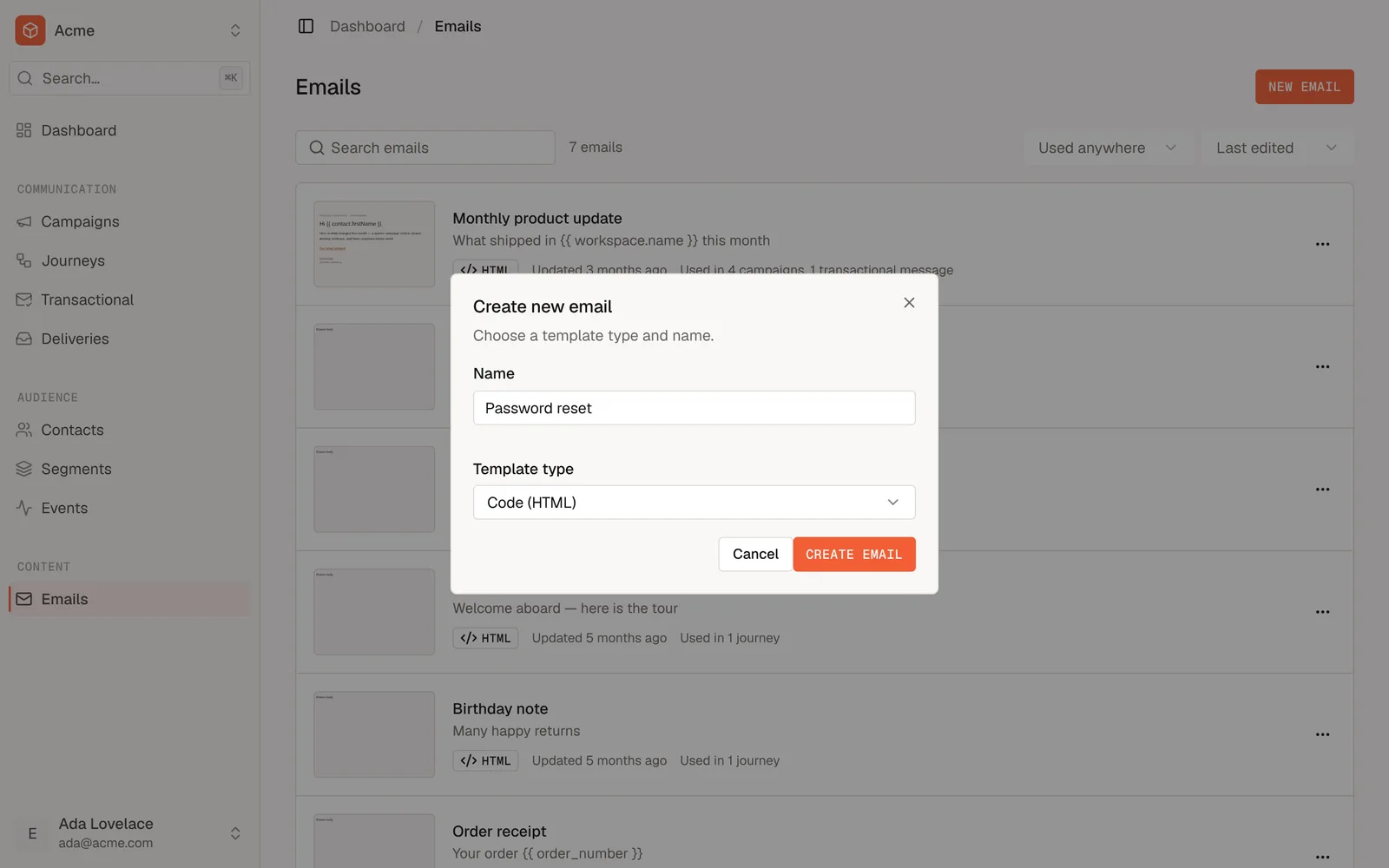
Email Templates in the Guides covers the editor in detail.
Through the API, post the template with a slug you will send it by (scope email-template:write):
curl -X POST https://api.mailcrate.io/public/email-template \
  -H "Authorization: Api-Key $MAILCRATE_API_KEY" \
  -H "Content-Type: application/json" \
  -d '{
    "name": "Password reset",
    "slug": "password-reset",
    "type": "html",
    "senderIdentityId": "<sender_identity_id>",
    "subject": "Reset your password, {{ contact.properties.firstName | default: \"there\" }}",
    "html": "<p>Someone asked to reset your password.</p><p><a href=\"{{ resetUrl }}\">Choose a new password</a></p><p>The link expires in {{ expiresInMinutes }} minutes.</p>",
    "variables": [
      { "key": "resetUrl", "sample": "https://app.example.com/reset/sample" },
      { "key": "expiresInMinutes", "sample": "30" }
    ]
  }'
GET /public/sender-identity lists the sender identity ids. The response is the new template, including its id.
Set the sender and subject
A template carries its own From, Subject, Preview text, Reply To and BCC. In the editor they sit behind Settings, above the email body:
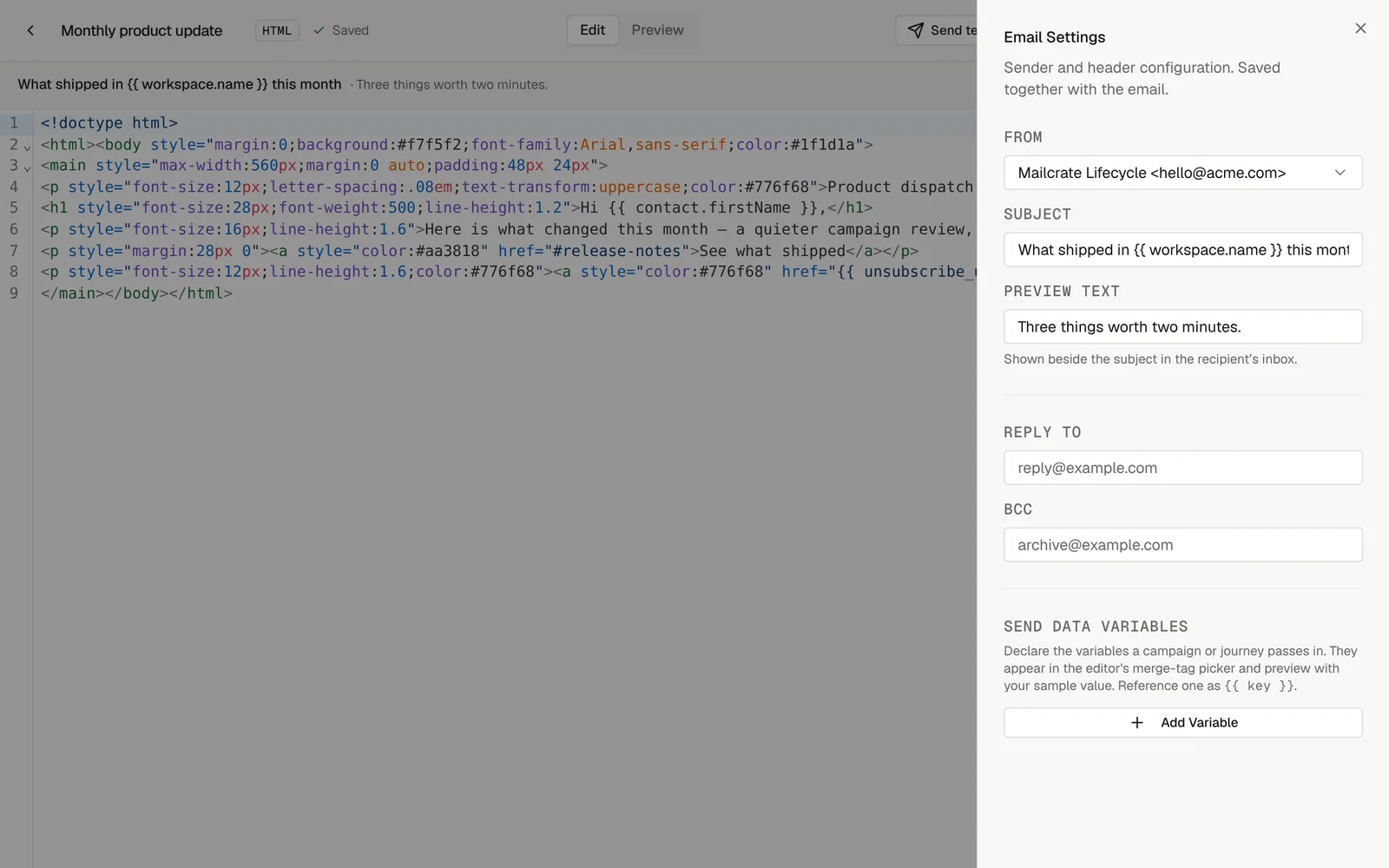
These values are used for every send of the template. A send request can override the From address with fromAddress, but not the subject, reply-to or BCC.
Add variables
Variables are the gaps your code fills at send time. Write them as {{ name }} in the body or the subject:
<h1>Reset your password</h1>
<p>Hi {{ contact.properties.firstName | default: "there" }},</p>
<p><a href="{{ resetUrl }}">Choose a new password</a>. The link expires in {{ expiresInMinutes }} minutes.</p>
Templates use the Liquid template language. These values are available:
| Variable | Comes from |
|---|---|
{{ resetUrl }}, {{ anyKey }} | The data object of the send request. Each key becomes a variable of the same name. |
{{ contact.email }} | The recipient's address. |
{{ contact.properties.firstName }} | Any custom property of the contact. |
{{ contact.externalIdentifier }} | Your own id for the contact, if it has one. |
{{ unsubscribe_url }} | The recipient's unsubscribe link. Empty on transactional message sends. |
{{ sender_address }} | Your workspace's postal address, for the footer. |
Under Send data variables in the template settings you can declare the keys you expect, with a sample value. Declaring them is optional: it lists them in the editor's merge-tag picker and fills them in the preview, and it does not change what is sent.
Preview it with real data
In the editor, switch to Preview and choose a contact to see the email as they would get it.
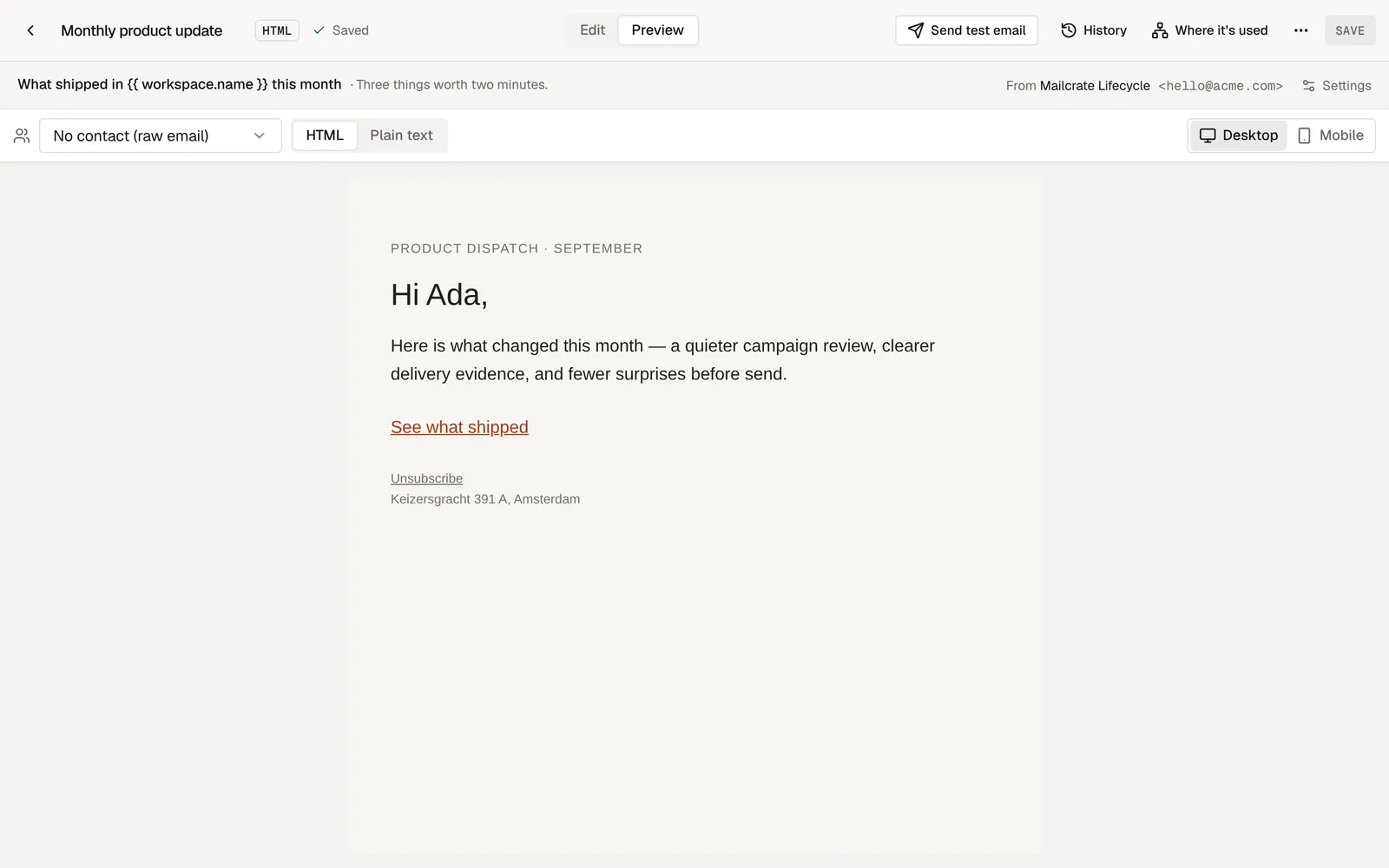
From code, render the template with the data you plan to send, without sending anything:
curl -X POST https://api.mailcrate.io/public/email-template/password-reset/render-preview \
  -H "Authorization: Api-Key $MAILCRATE_API_KEY" \
  -H "Content-Type: application/json" \
  -d '{
    "contactId": "user_8231",
    "data": { "resetUrl": "https://app.example.com/reset/8f2c", "expiresInMinutes": 30 }
  }'
The response is { "html": "…" }. contactId is optional; without it the contact variables are empty.
To try out a piece of Liquid without saving a template, POST /public/render (scope rendering:write) renders any html with any data.
Send it
Send the template by its slug or id, with the values in data:
curl -X POST https://api.mailcrate.io/public/sending/mail \
  -H "Authorization: Api-Key $MAILCRATE_API_KEY" \
  -H "Content-Type: application/json" \
  -d '{
    "contactEmail": "ada@example.com",
    "templateId": "password-reset",
    "lane": "transactional",
    "data": {
      "resetUrl": "https://app.example.com/reset/8f2c",
      "expiresInMinutes": 30
    },
    "idempotencyKey": "password-reset-8f2c"
  }'
Don't forget the lane
A send by templateId defaults to the marketing lane, which skips recipients who unsubscribed from your marketing. Set "lane": "transactional" for password resets, receipts and anything else the recipient asked for. See Lanes.
How variables behave
-
A missing variable renders as nothing. If the template uses
{{ couponCode }}anddatahas nocouponCode, that spot is empty and the email still sends. Usedefaultfor a fallback:{{ couponCode | default: "WELCOME10" }}. -
Values can be objects and lists. Send
"data": { "order": { "items": [...] } }and loop over it:{% for item in order.items %} <tr><td>{{ item.name }}</td><td>{{ item.quantity }}</td></tr> {% endfor %} -
Conditions work the usual Liquid way:
{% if order.discount %}…{% endif %}. -
Some names are reserved.
contact,unsubscribe_url,unsubscribeUrlandsender_addressindataare dropped, so your data cannot replace the real recipient or unsubscribe link. -
Text is not HTML-escaped automatically. If a value comes from a user, escape it:
{{ comment | escape }}. -
The subject is a template too.
Your order {{ orderNumber }}works in the subject field.
Editing a template that is in use
You can change a template at any time; the next send uses the new version. An email already queued keeps the version that was current when you sent it, so an edit never changes an email halfway. Every save is kept in the template's History, so you can see and restore earlier versions.
Before deleting a template, check Where it's used. Sends by a slug that no longer exists fail with 404 Email template "…" not found.
Next steps
Sending Transactional Email
Send password resets, receipts and other one-to-one email from your application, with every option on a send explained by task.
Lanes
Every email goes out on the marketing or the transactional lane. The lane decides who can receive it, and the default is not always the one you want.