 Mailcrate
Transactional Messages
Set up an email your product sends when a customer does something, such as resetting a password, and follow how it performs.
A transactional message is an email your product sends to one person because of something they did: a password reset, an order confirmation, a sign-in link. You set it up in Mailcrate, and your application sends it through the API at the right moment.
Each message gets its own page with delivery stats and a history of every email it sent, and it goes out on the transactional lane unless your application asks otherwise. That means it reaches people even if they unsubscribed from your marketing, which is what a password reset needs. See Lanes for the details.
Set up a message
Create it
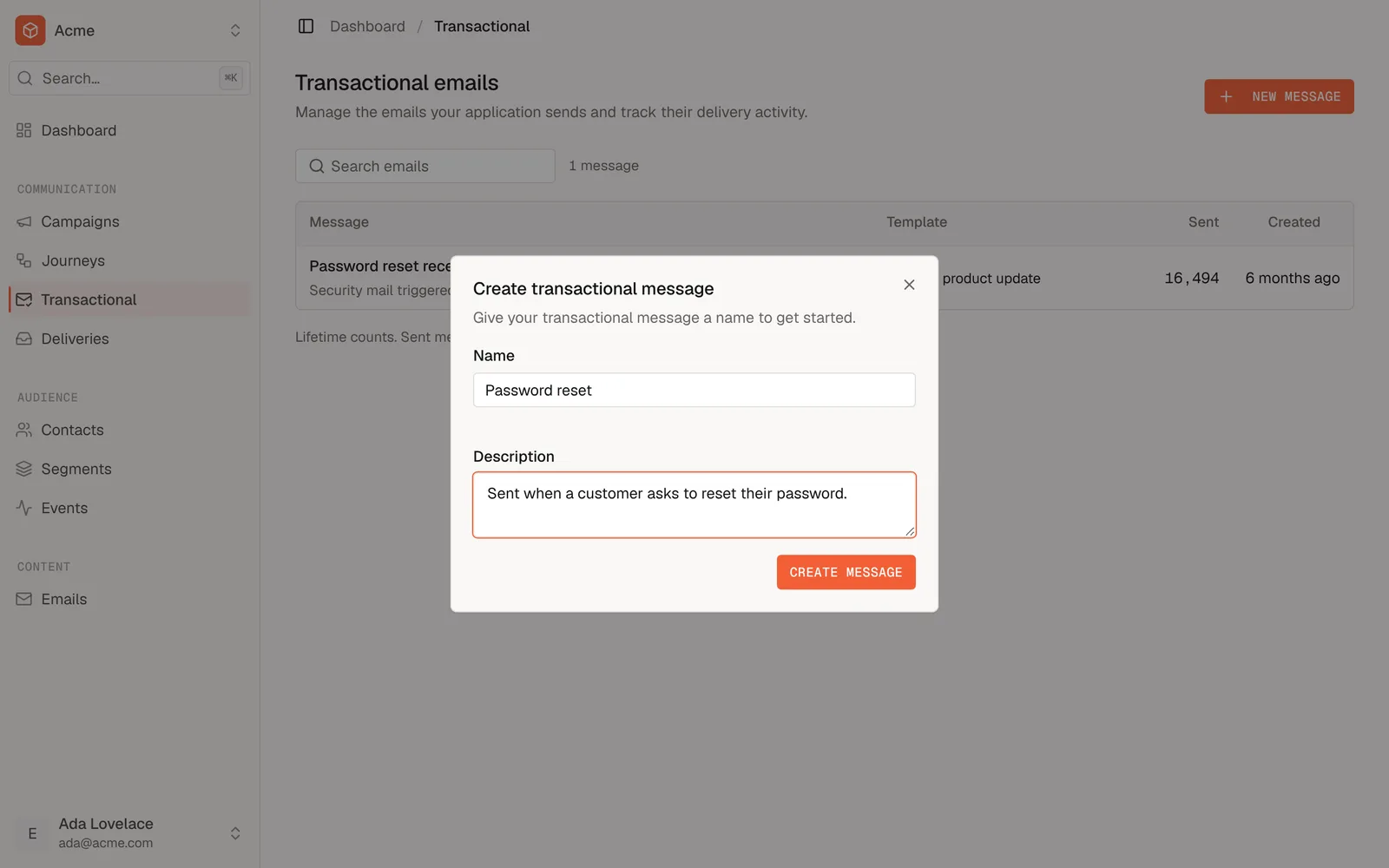
Open Transactional in the sidebar and choose New Message. Name it after what triggers it, such as "Password reset", and add a short description so your team knows when it is sent.
Attach an email
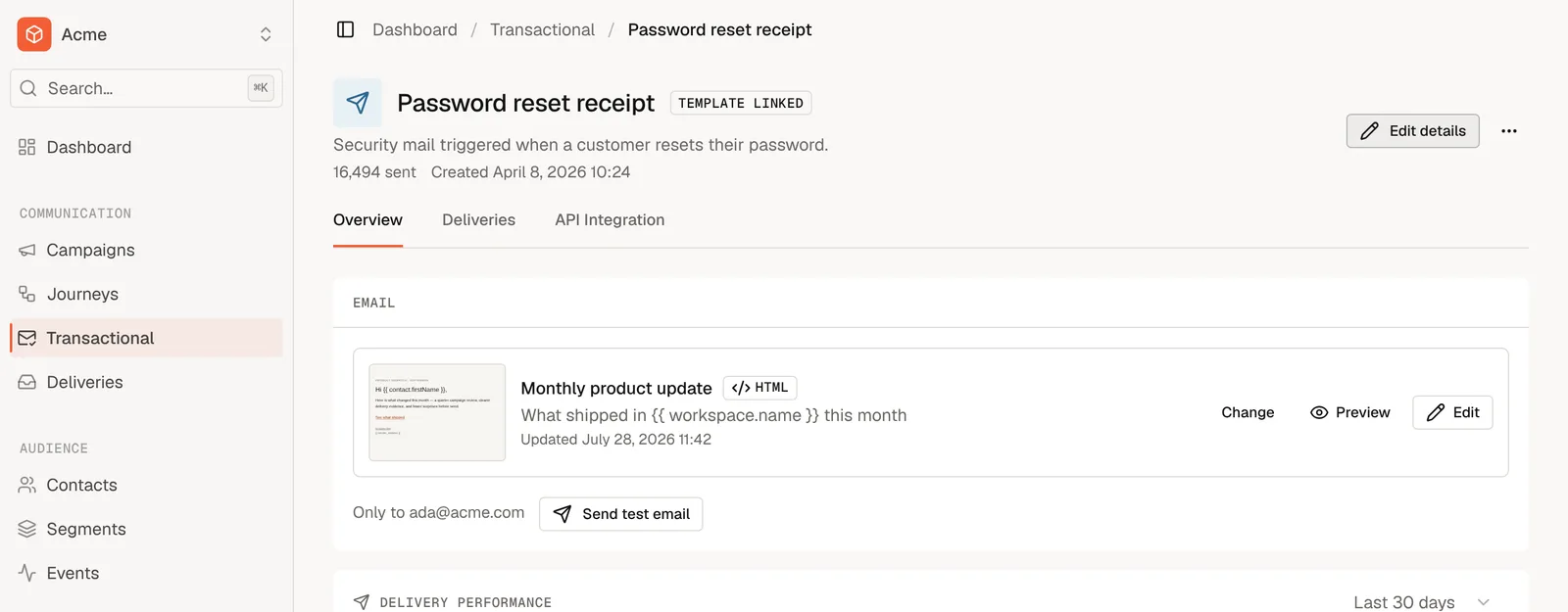
On the message's Overview, choose an existing email or create a new one. The email decides what the message looks like: its design, subject and sender. Edit it any time with Edit; see Email Templates.
Transactional emails can use merge tags for values your application sends along, such as {{ resetUrl }} or {{ order_number }}. Agree on these names with whoever connects your application.
Send yourself a test
Choose Send test email to get a copy in your own inbox. Check the subject, the sender, the links and how it looks on your phone.
Connect your application
Open the API Integration tab. It shows the message ID and a ready-made example request. Share it with the developer who connects your application.
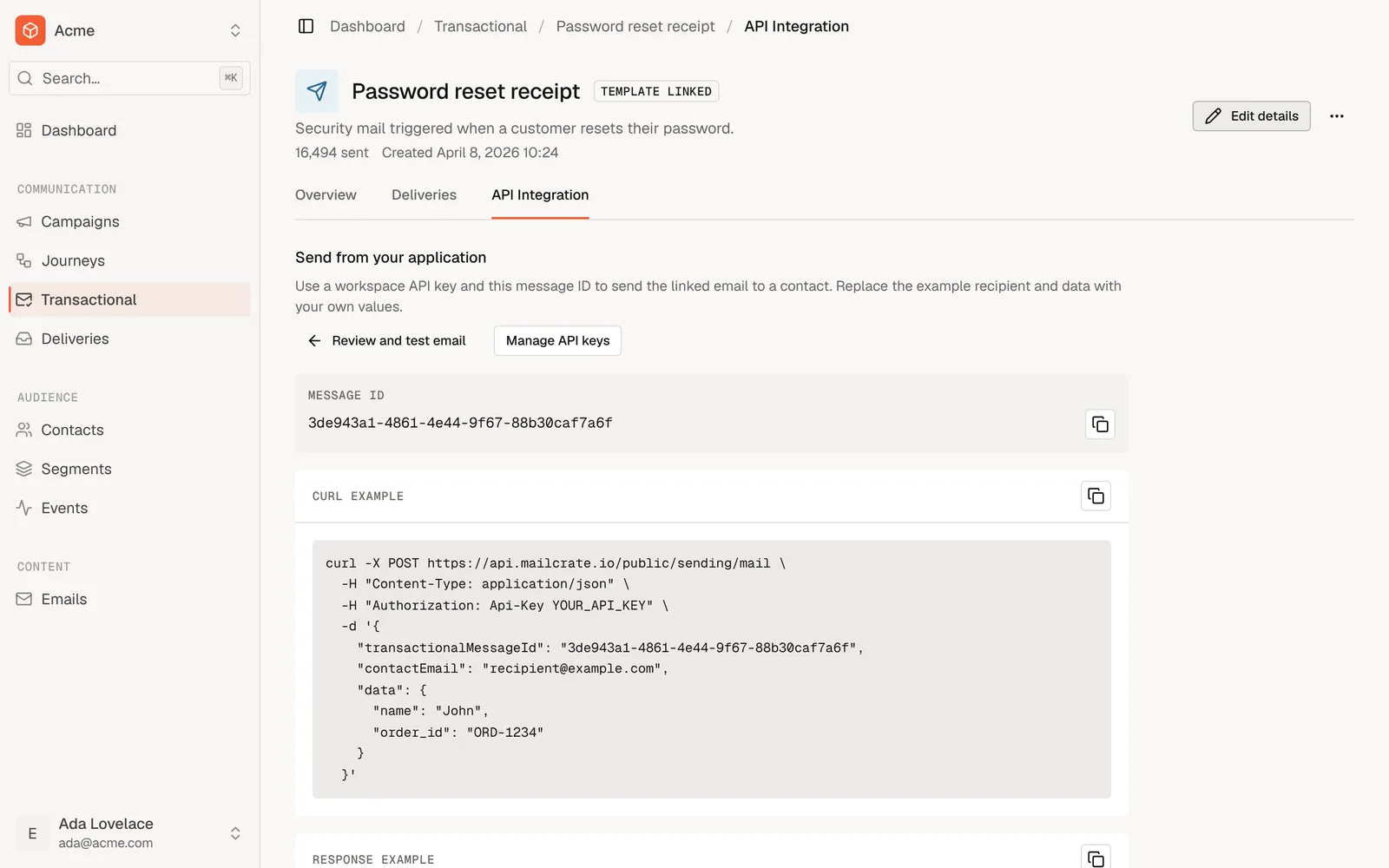
The developer sends the message with the ID, the recipient and the values for your merge tags:
{
  "transactionalMessageId": "3de943a1-4861-4e44-9f67-88b30caf7a6f",
  "contactEmail": "ada@example.com",
  "data": { "resetUrl": "https://app.example.com/reset/8f2c" }
}
Sending Transactional Email has everything they need.
Follow how it performs
- Overview shows how many emails were sent, delivered, opened and clicked, and how many bounced or drew complaints, over a period you choose.
- Deliveries lists every email the message sent. Filter it to the bounced ones to find addresses that need fixing, and open one to see exactly what that person received.
Good to know
- Changing the email changes every future send. Emails already on their way are not affected.
- No unsubscribe link. A transactional message's emails never carry one, because a recipient cannot opt out of mail they need. Keep marketing content out of them.
- Addresses that bounced or complained are still skipped. Those emails cannot or must not be delivered, on any lane.