 Mailcrate
Email Templates
Create an email in Mailcrate, personalise it with merge tags, and check it before anyone receives it.
Every email Mailcrate sends starts as a template under Emails in the sidebar. The same template can be used by a campaign, a journey, a transactional message or your developers' code, so you design it once and reuse it everywhere.
Create an email
Open Emails and choose New Email.
Give it a name you will recognise later, and pick a template type:
| Type | Choose it when |
|---|---|
| Visual editor | You want to build the email from blocks (text, images, buttons) without code. |
| Code (HTML) | You have HTML from a designer or another tool, or want full control. |
| React Email | Your developers keep templates in their code repository. See Templates as Code. |
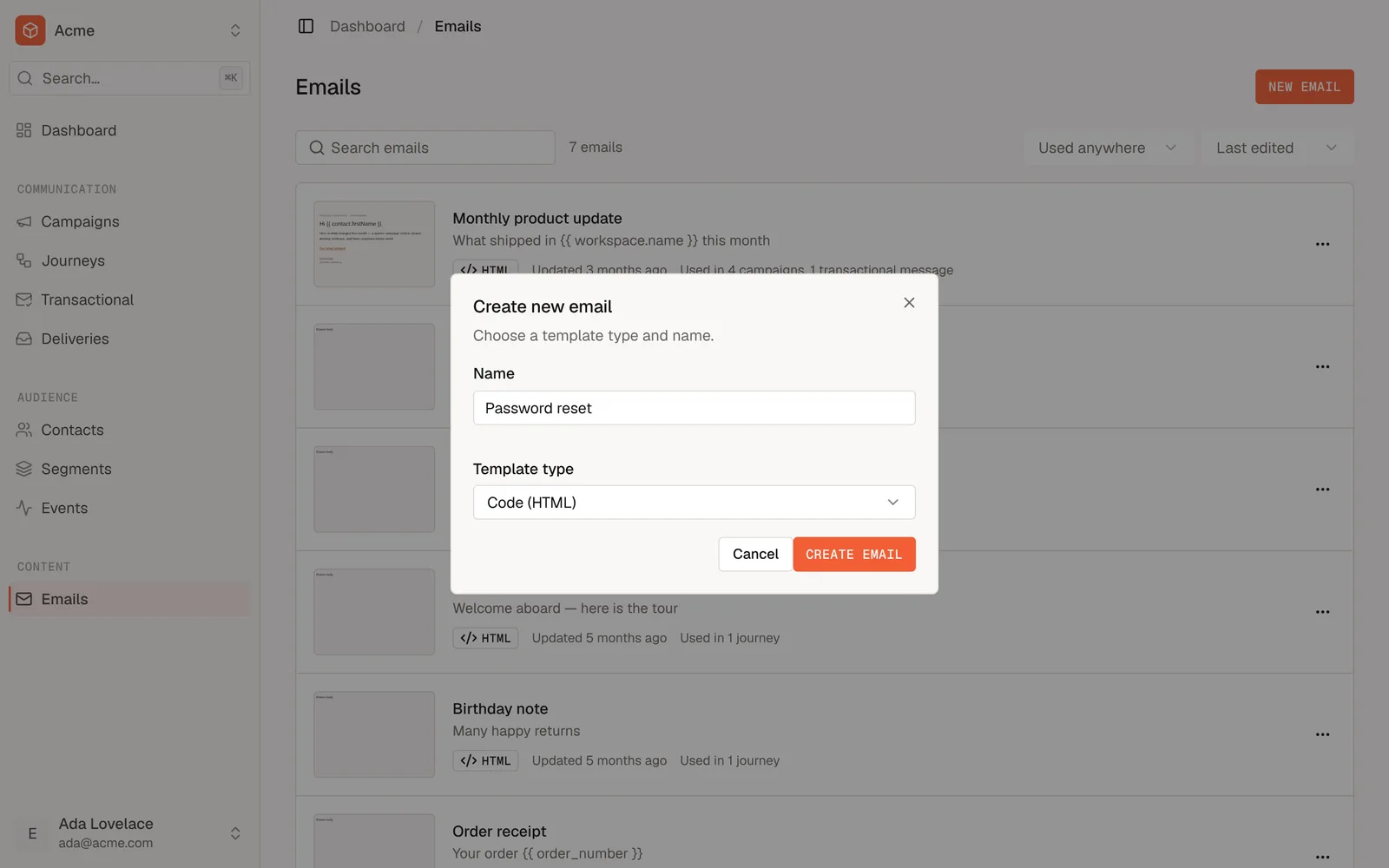
Choose Create Email. A Visual or HTML email opens in the editor with a starter email that already has a compliant footer: an unsubscribe link and your postal address. A React Email template opens on instructions for pushing its code instead.
Set the sender and subject
The line above the email shows its subject, preview text and sender. Select it (or Settings) to change them:
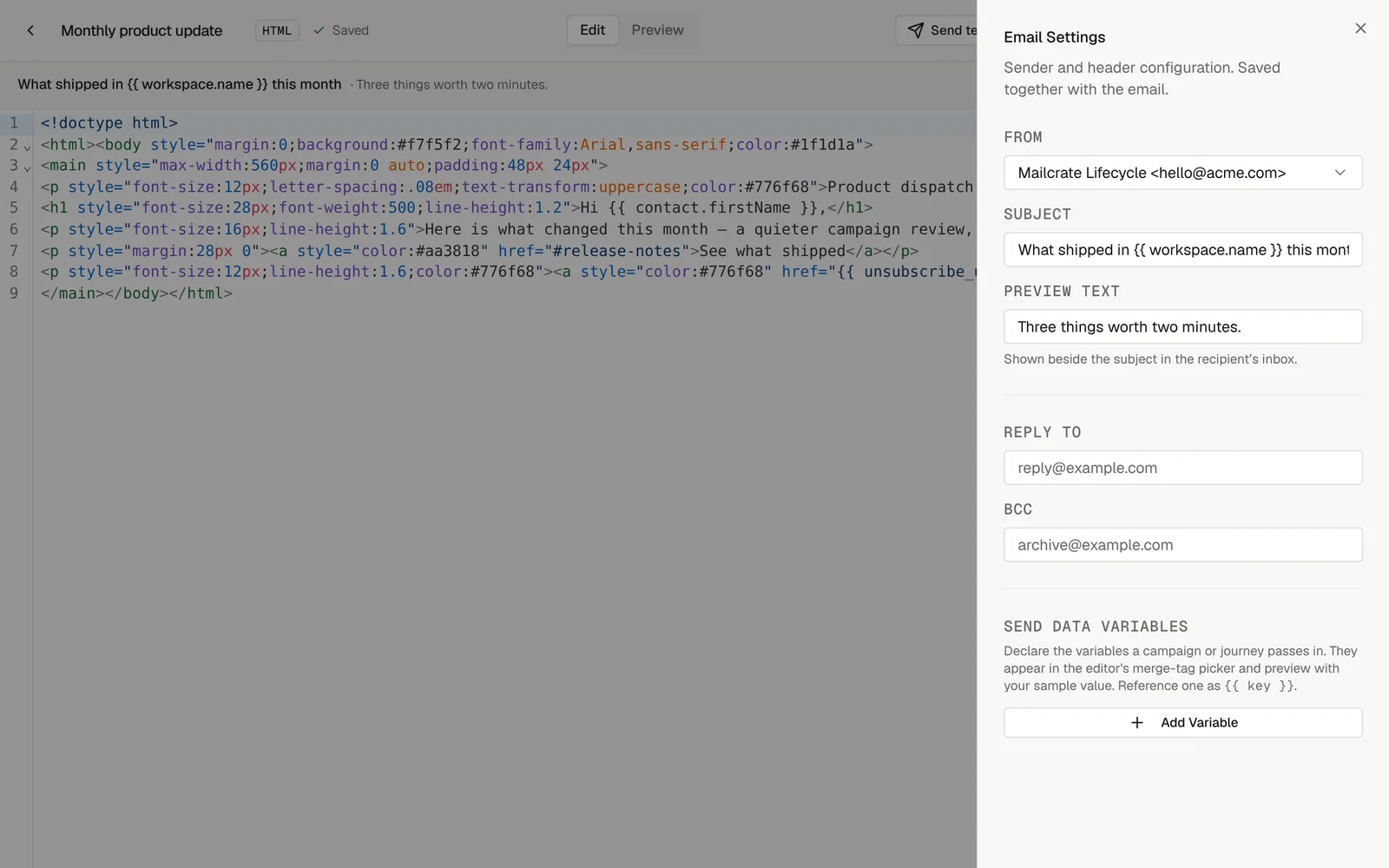
- From: the sender identity the email comes from. Senders are set up under Settings → Mailing.
- Subject: can be personalised, for example
Your order {{ order_number }} has shipped. - Preview text: the short line most inboxes show after the subject.
- Reply To and BCC: optional. Leave Reply To empty to get replies at the From address.
Personalise with merge tags
A merge tag is a placeholder that is replaced with each recipient's own value when the email is sent. Merge tags are written between double curly braces:
| Merge tag | Shows |
|---|---|
{{ contact.email }} | The recipient's email address |
{{ contact.properties.firstName }} | A contact property, here firstName |
{{ order_number }} | A value sent along with the email, by a journey or by your developers |
{{ unsubscribe_url }} | The recipient's unsubscribe link |
{{ sender_address }} | Your workspace's postal address |
Add a fallback for recipients who have no value: Hi {{ contact.properties.firstName | default: "there" }}.
Values that come with the send rather than from the contact, such as an order number, are called send data. List the ones you expect under Send data variables in the settings, each with a sample value. They then appear in the editor's merge-tag picker, and the preview uses the sample.
Check it before it goes out
The editor has two ways to check your work:
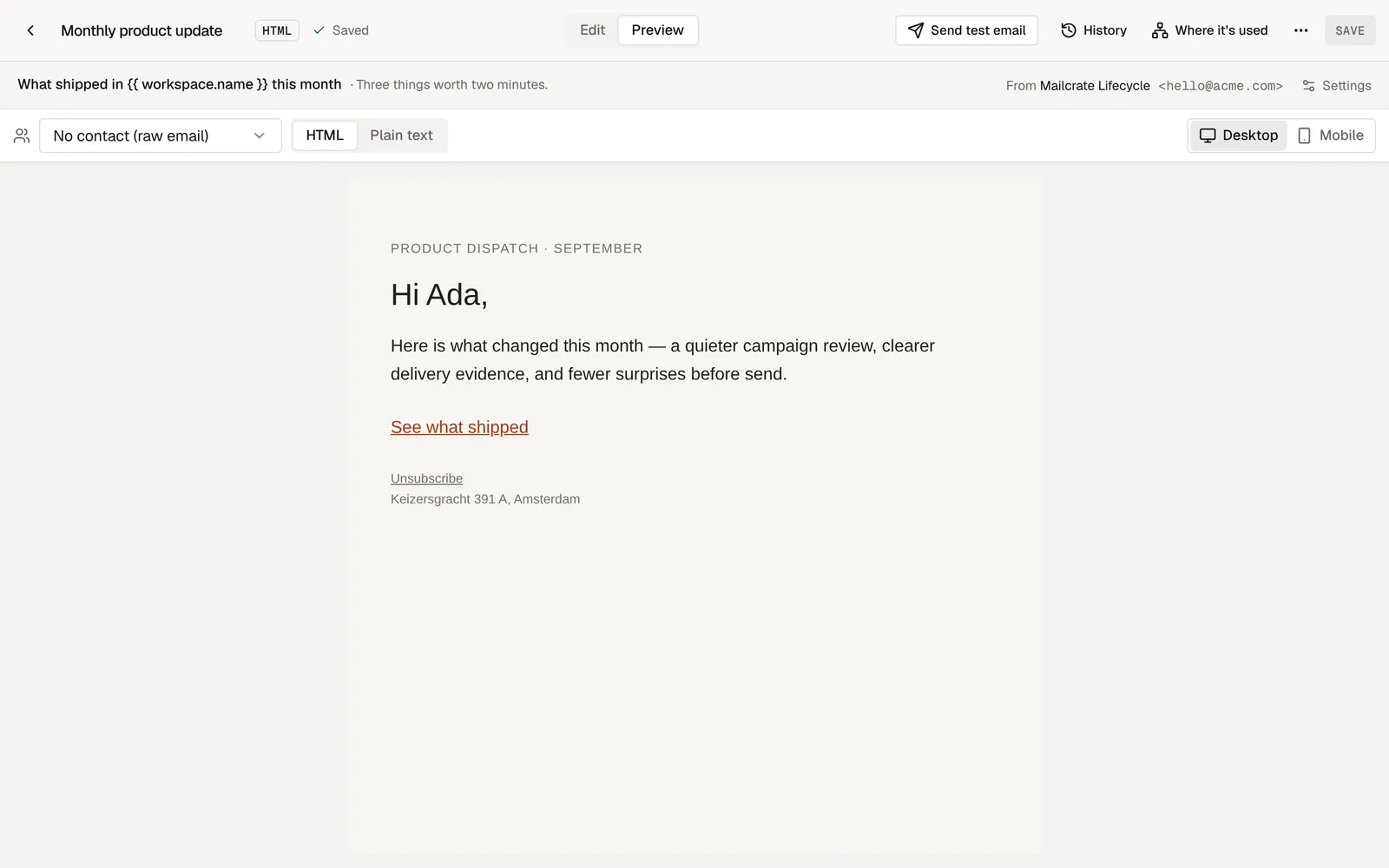
- Preview shows the email as a recipient sees it, with merge tags filled in. Pick a contact at the top to preview with their details, and switch between desktop and mobile widths.
- Send test email sends a copy to your own inbox. A test never adds you as a contact and never counts in reports.
Keep track of changes
- Save stores your changes. Emails already on their way keep the version they were sent with.
- History lists every saved version, so you can see what changed and restore an earlier one.
- Where it's used lists the campaigns, journeys and transactional messages that use the email, and whether your developers send it through the API. Check it before you delete an email or change it a lot.
Next steps
- Send the email automatically after something happens in your product: Transactional Messages.
- Hand it to a developer: Send with a Template.