 Mailcrate
Inbound Addresses
Set up a forwarding address or a dedicated domain so your workspace can receive mail.
An inbound address is where your workspace receives mail. You set them up in Settings → Mail Setup → Inbound, which appears once the Inbound email feature is on (Settings → Workspace → Features).
There are two kinds. Pick by whether you want to keep your current mailbox:
- A forwarding address keeps your mailbox provider. You forward some or all of a mailbox's mail to an address Mailcrate generates. No DNS changes.
- A dedicated domain sends all mail for a domain to Mailcrate, with no mailbox in between. It needs an MX record.
Mail from both shows up in the same Inbound log.
Forward an existing mailbox
Create the address
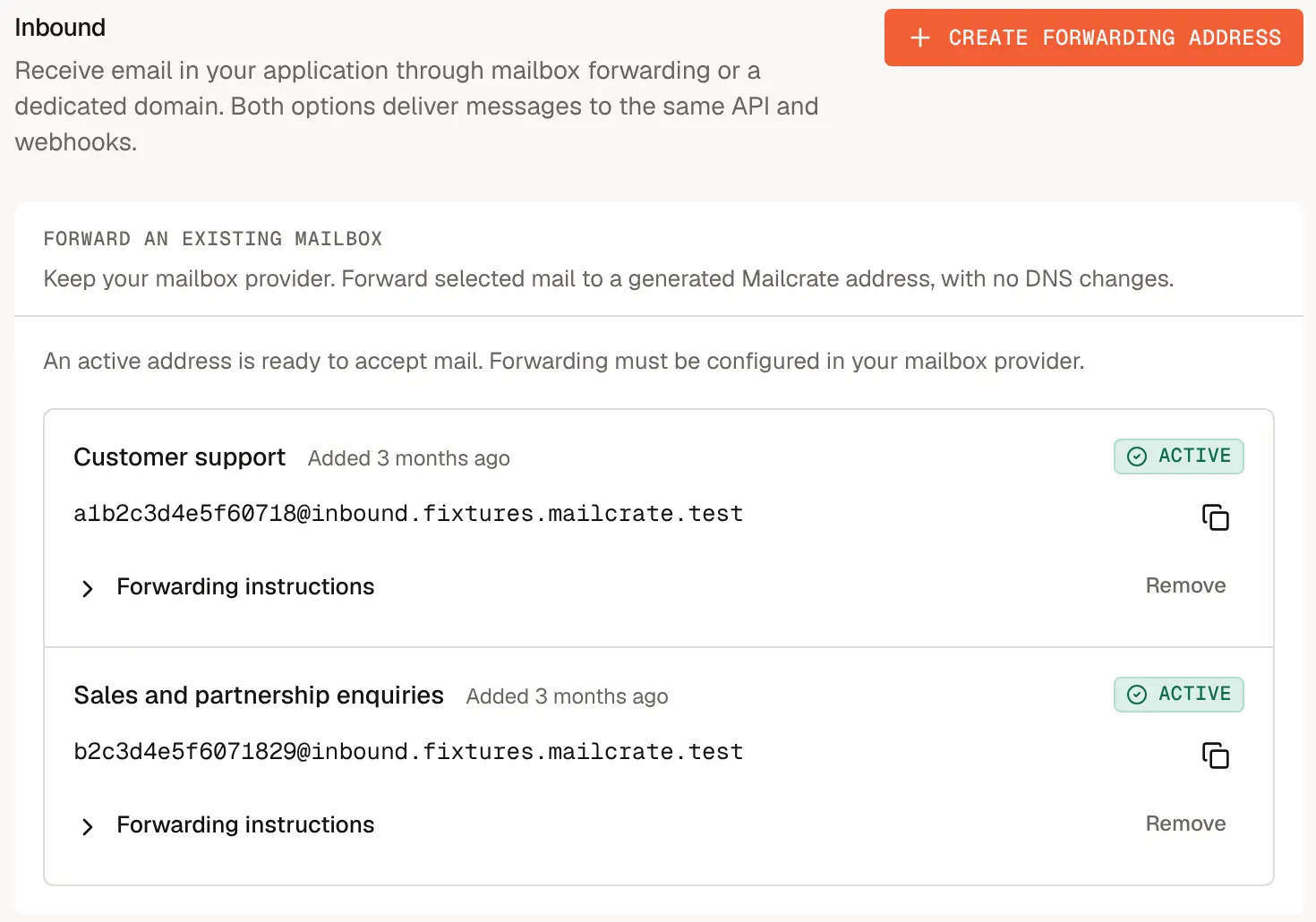
In Settings → Mail Setup → Inbound, choose Create forwarding address. Give it a Label you will recognise, such as "Support inbox", and choose Create address.
Mailcrate generates the address, for example a1b2c3d4e5f6a7b8@inbound.mailcrate.io. The label is only for you and never becomes part of the address. The address is random so nobody can guess it, and it accepts mail straight away.
Add it to your mailbox's forwarding settings
Copy the address and add it as a forwarding destination in your mailbox provider (Google Workspace, Microsoft 365, and so on). Most providers let you forward everything or only messages that match a rule. Mailcrate never changes anything in your mailbox.
Confirm the forwarding, if your provider asks
Many providers send a confirmation code or link to the new forwarding address before they start forwarding. That email arrives in Mailcrate like any other: open Inbound in the sidebar, find the message from your provider, and use the code or link in it to confirm.
Send a test
Send an email to your original mailbox, and check that it appears in Inbound. For forwarded mail, the message shows Originally to with the address the sender wrote to.
Forwarding instructions on each active address repeat these steps.
Receive mail on your own domain
A dedicated domain receives every address at that domain: support@, replies@, anything. Mailcrate receives on domains you have already verified for sending.
This takes over the domain's mail
Pointing a domain's MX record at Mailcrate routes all email for that domain to Mailcrate. If people already receive mail at the domain, use a dedicated subdomain such as inbox.example.com instead. Add and verify the subdomain as a sending domain first, under Settings → Mail Setup → Mailing; see Verify Your Domain.
Enable inbound on the domain
Under Dedicated domain, find the domain and choose Enable inbound, then confirm.
Add the MX record
Mailcrate shows the MX record to add. Create it at your DNS provider with the name, priority and value shown. Most providers want the priority and the value in separate fields, and some call the name "Host" and the value "Mail server".
Check DNS
DNS changes can take a while to reach everyone. Once the record is in place, choose Check DNS. When Mailcrate finds it, the domain shows as Verified. If the check doesn't find it yet, compare the values with your DNS provider and try again later.
When inbound is enabled on the domain you send from, replies to your emails come straight back to Mailcrate. See Getting replies to your campaigns.
Statuses
A forwarding address is Active from the moment it is created, which means it accepts mail. An address marked Disabled does not accept new mail.
A dedicated domain shows whether its MX record was found the last time you checked:
| Status | Meaning |
|---|---|
| Verified | The MX record points at Mailcrate. The domain is receiving mail. |
| Pending | The MX record was not found yet. Add it, wait for DNS to update, and choose Check DNS. |
Mail reaches Mailcrate as soon as your MX record is live, so Check DNS confirms the setup rather than switching it on.
Remove an address or a domain
- To stop a forwarding address, choose Remove next to it. Mail forwarded to it is no longer accepted, so remove the forwarding rule in your mailbox provider too.
- To stop receiving on a domain, choose Disable. New mail for the domain is no longer accepted. Point the MX record somewhere else if the domain's mail should go to another provider.
Either way, messages already received stay in the Inbound log.
Good to know
- Unknown addresses are dropped. Mail to a removed forwarding address, or to a domain without inbound, is not accepted by any workspace.
- Developers can manage forwarding addresses through the API, including setting a default sender for replies on each address. See Receiving Inbound Mail and the Inbound API reference.