 Mailcrate
Journey Builder
Create a journey, lay out its steps on the canvas, publish it safely, and follow how contacts move through it.
A journey is an automated flow: a trigger enrolls a contact, and the contact then walks the steps you connected to it, such as sending an email, waiting a day, or branching on whether they opened it. You build it on a canvas under Journeys in the sidebar.
Journeys are on for every new workspace. If you don't see Journeys, an owner or admin can turn it on in Settings → Workspace → Features.
Create a journey
Open Journeys and choose Create Journey.
Start from a recipe, or from a Blank canvas. Each recipe shows What it does and You'll need before you pick it:
| Recipe | What it does |
|---|---|
| Welcome new contacts | Starts when a contact is created, waits 10 minutes, then sends your welcome email. |
| Follow up on a click | Starts when a contact clicks a link in an email, waits a day, then sends a follow-up. |
| React to a product event | Starts when your product sends an event, and sends an email straight away, every time. |
Give the journey a Name and create it. It opens in the builder as a Draft: nothing runs until you publish.
Build the flow
The builder has three parts: the palette of steps on the left, the canvas in the middle, and the inspector, which opens on the right when you select a step.
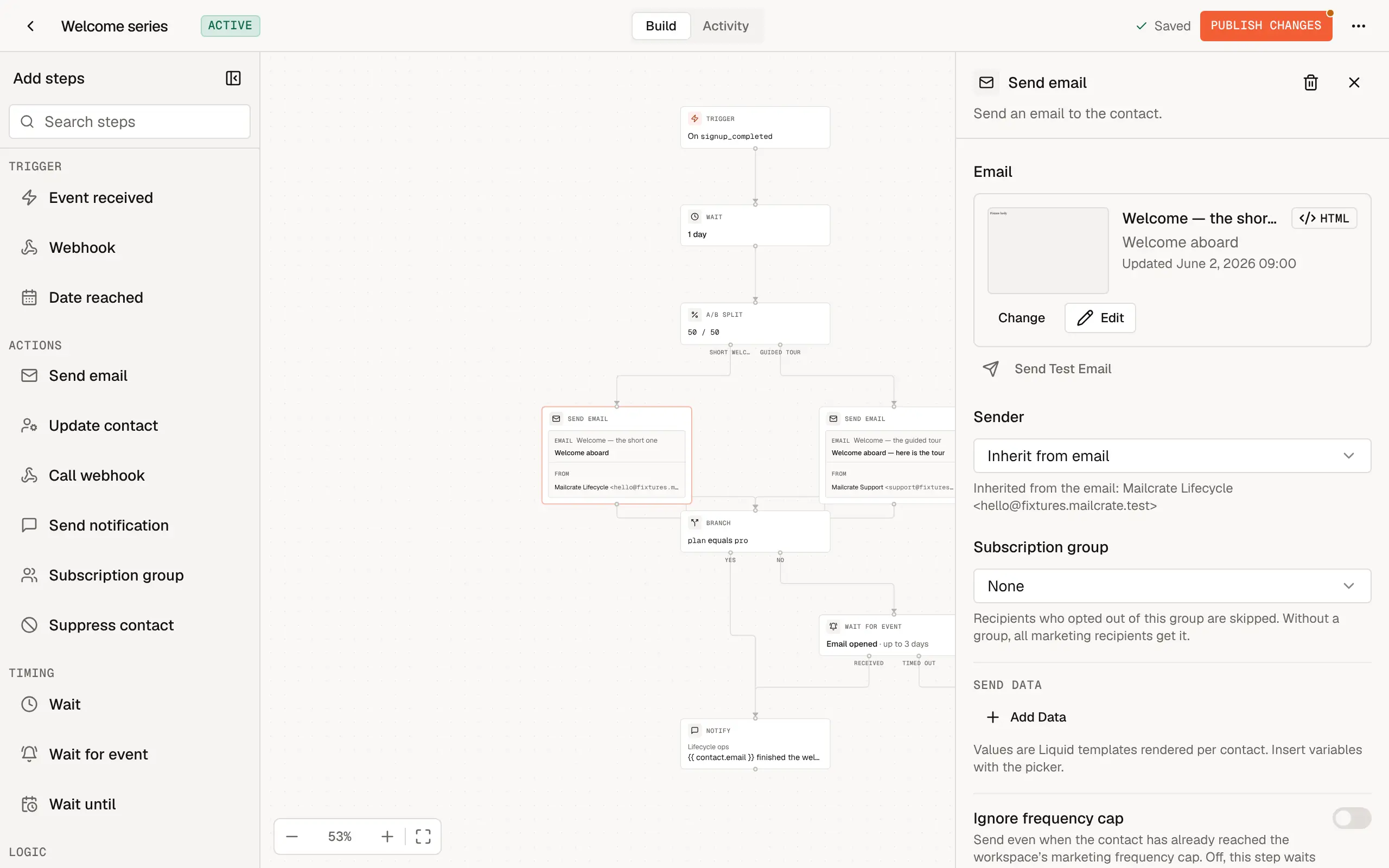
- Add a step by dragging it from the palette onto the canvas, or by clicking it in the palette.
- Insert a step between two others by hovering the connection between them and choosing Insert step here.
- Connect steps by dragging from the handle at the bottom of one step to the next. Steps with more than one outcome, such as Branch (Yes / No) or a wait with a timeout (Received / Timed out), have a handle for each.
- Set a step up in the inspector. A step that still needs something, such as an email to send, says so on the canvas.
- Delete the selected step or connection with the Delete or Backspace key. Undo and Redo with Cmd/Ctrl+Z and Shift+Cmd/Ctrl+Z.
The palette groups the steps:
| Group | Steps |
|---|---|
| Trigger | Event received, Webhook, Date reached. See Triggers. |
| Actions | Send email, Update contact, Call webhook, Send notification (Slack or Discord), Subscription group, Suppress contact |
| Timing | Wait, Wait for event, Wait until |
| Logic | Branch, A/B split, External check |
What each step does and how to set it up is in Node Types.
Rules of a journey
- Every journey needs at least one trigger, and can have up to five.
- A journey can have up to 50 steps.
- Flows only move forward: a step can't lead back to an earlier one.
- Every step must be reachable from a trigger.
Saving
The builder saves your draft automatically a moment after each change; Cmd/Ctrl+S saves straight away. If someone else changes the same journey at the same time, the builder stops and shows both versions so that nobody's work is overwritten silently.
On a phone the builder is read-only. Open the journey on a larger screen to edit it.
Journey settings
Open More actions (the menu next to Publish) and choose Journey settings for the options that apply to the whole journey:
- Enrollment: whether contacts can go through the journey more than once, how many can be in it at the same time, and whether contacts leave it when they unsubscribe or leave a segment. See Who can enter, and how often.
- Goal: an event that counts as success, such as
order_placed. The journey's activity shows how many contacts reached it within the Attribution window you set, and Exit contacts when the goal is reached can take them out of the journey the moment they do. - Sending window: send emails only on certain days and between certain hours, in the timezone you choose. Emails due outside the window wait for it to open.
Publish
When the flow is ready, choose Publish. Mailcrate first checks the journey; if anything is missing, Can't publish yet lists each problem, and selecting one takes you to the step concerned.
The first time you publish, you choose what happens next:
- Go live now: contacts enroll as soon as the trigger fires, and every email is real.
- Rehearse first, publish paused: nobody enrolls. Choose Enroll a test contact… to walk one contact you own (your own inbox, for example) through the real steps, waits and branches, then choose Go live when it reads right.
A test run is not a sandbox
A test contact goes through the journey for real: emails are delivered, contact properties and subscriptions change, and webhook and notification steps call their real endpoints. Use a contact you own. Test runs are marked TEST and are left out of the journey's statistics.
Changing a live journey
Edits to a published journey go into a new draft. The live version keeps running unchanged until you choose Publish Changes. When you do, you choose what happens to contacts already in the journey:
- Keep them on the version they entered with, and only new contacts use the new version. This is the default and the safe choice.
- Move them to the new version. Contacts at a step you removed leave the journey, and the dialog says how many that is before you confirm.
Version history in More actions lists every published version and what changed in it. You can restore an older version to the draft and publish it again.
Pause, resume and archive
From More actions in the builder, or from a journey's row in the list:
- Pause stops new enrollments and holds everyone already in the journey where they are. Nothing is sent while it is paused.
- Resume continues where everyone left off.
- Archive ends the journey for good. Contacts still in it leave, and its history is kept. An archived journey can't be edited.
Duplicate in the journey list makes a draft copy, which is the way to build on an archived journey.
Follow how it performs
After the first publish, the Activity tab shows the journey with live figures:
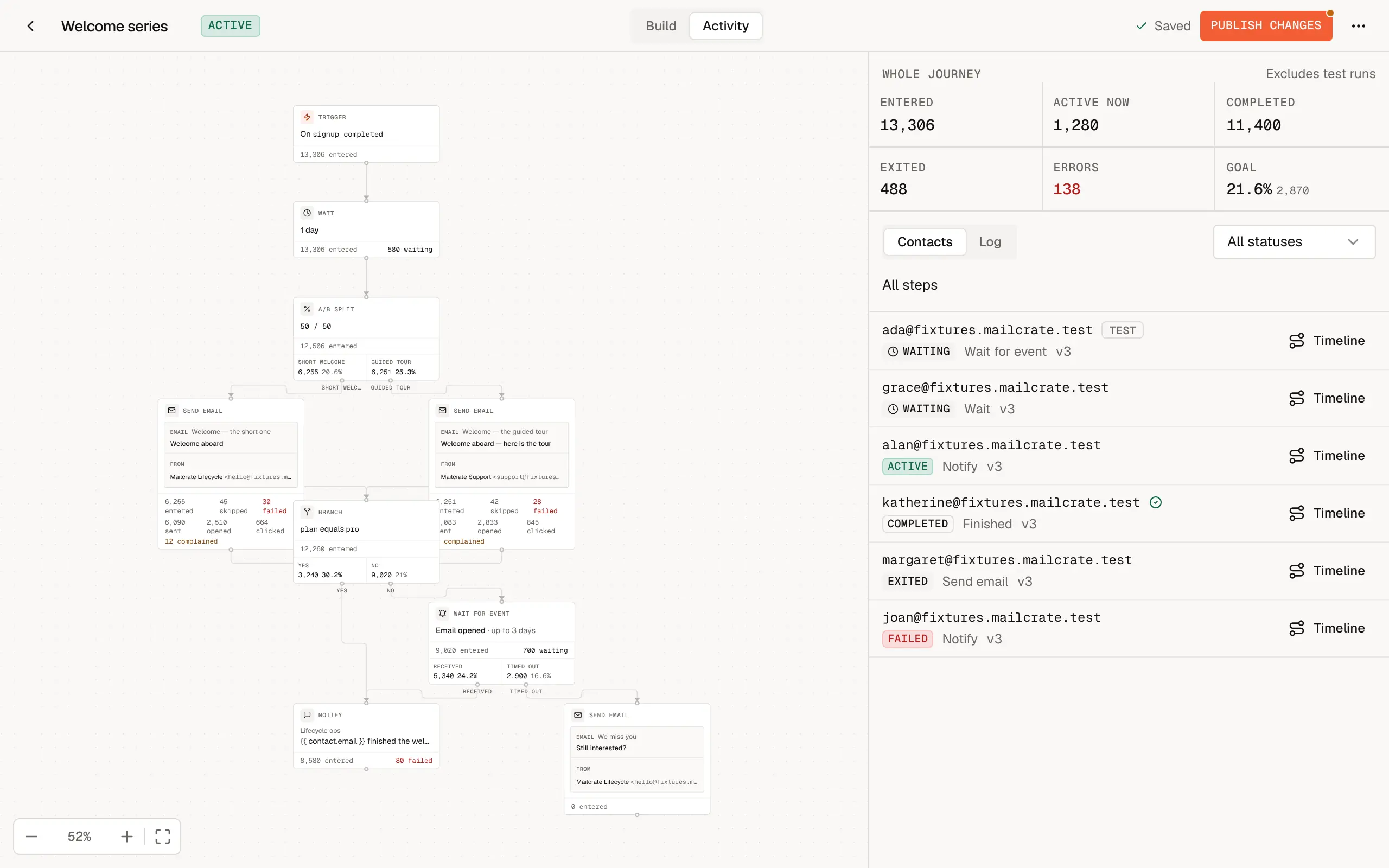
- Whole journey: how many contacts Entered, are Active now, Completed, Exited, and how many hit Errors, plus the goal if you set one.
- Per step: select a step to see how many contacts entered it, finished it, are waiting at it or failed there. An email step adds sent, delivered, opened and clicked, and an A/B split shows each path's results.
- Contacts: everyone who entered, filterable by status (active, waiting, completed, exited, failed or canceled). Open one to see their timeline: every step they passed, which branch they took and why, and any error.
Good to know
- Contacts only enter while the journey is live. To include people who triggered it before you published, use Enroll past contacts…; see Triggers.
- Suppressed addresses are never emailed. A Send email step skips them, as every send does. See Suppression List.
- Developers can read a journey and its figures, and enroll or remove contacts, through the Journeys API. See Triggering Journeys.