 Mailcrate
Contact Events
Record what people do in your product, see it on each contact's timeline, and use it in segments and journeys.
A contact event records something a person did in your product: signed up, started a trial, placed an order. Your systems send events to Mailcrate as they happen, and each one is stored on the contact with any details you include, such as an order total or a plan name.
Events are what make your email react to behaviour. You can segment on them ("placed an order in the last 30 days"), start a journey when one arrives, or have a journey wait for one.
How events arrive
Events come from your own systems, through the API. A developer sends the event's name, who it is about, and any details:
{
  "name": "order_placed",
  "email": "ada@example.com",
  "properties": { "total": 4999, "currency": "usd" }
}- The name says what happened. It is the name you will pick in segments and journeys, so agree on a short list with your developers and keep the spelling identical every time:
order_placedandOrder Placedare two different events. - The contact is identified by email address, contact ID or your own external identifier. If no contact has that email address yet, Mailcrate creates one.
- Properties are the details: any values you want to filter on or put in an email.
Syncing Contacts and Events walks your developers through the request, including how to avoid recording the same event twice. The field-by-field format is in the Record a contact event API reference.
You don't set event types up in advance. A new event name appears in Mailcrate the first time an event with that name is received.
Name the action, not the details
A workspace can have up to 500 different event names. Put changing details in properties rather than in the name: send order_placed with { "plan": "pro" }, not order_placed_pro.
Browse your events
Open Events in the sidebar, under Audience. The list shows every event name your workspace has received, how many times, and when it was first and last received.
Events is an optional page. Turn it on in Settings → Workspace → Features (Custom events). Events are accepted and stored whether the page is on or off, so turning it on shows everything you have already received.
Open an event to see:
- Its API event name, with a copy button. Use this exact name in your integration, segments and journeys.
- How many times it was received, and when it was first and last received.
- Recent events: each recent occurrence, the contact it belongs to, and its properties.
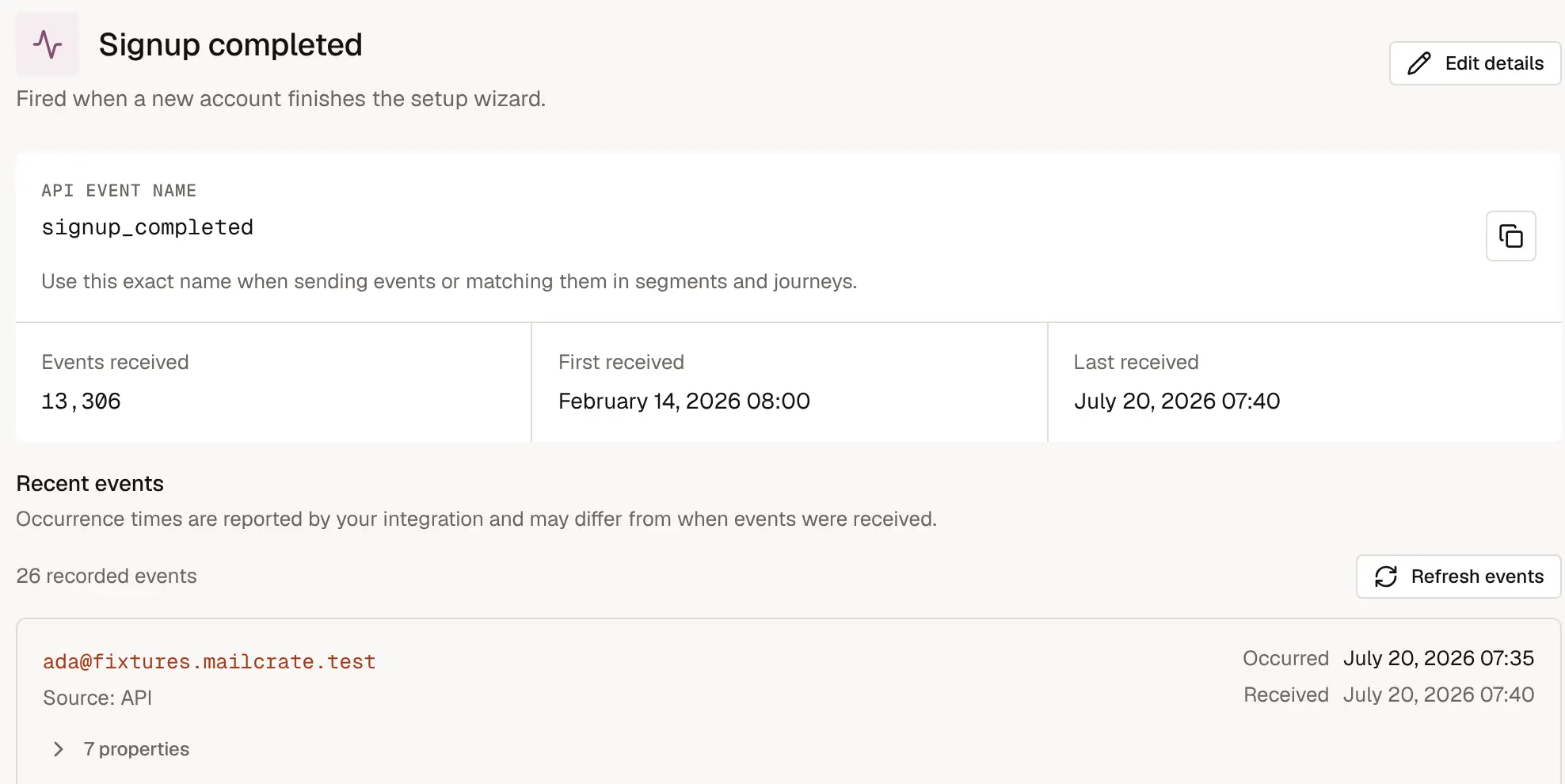
Occurrence times come from your integration, which can report when something happened rather than when it was sent, so they can differ from when Mailcrate received the event.
Give an event a friendly name
API names such as checkout_started are written for code. Choose Edit details on an event to give it a Display name (such as "Started checkout"), an icon and a Description of when it is sent. These appear in event lists and on contact timelines. The API event name does not change, so nothing breaks in your integration.
On the contact
Every event appears on the contact's Activity tab, alongside the emails they received, opened and clicked. That is the quickest way to check that your integration is sending what you expect for a particular person. See Contacts.
Use events
| Where | What you can do |
|---|---|
| Segments | Find contacts who did, or did not do, an event a number of times within a timeframe, optionally matching its properties. |
| Journey triggers | Start a journey when a contact receives an event, optionally only when its properties match. |
| Journey steps | Wait until a contact receives an event, branch on whether they did, or track it as the journey's goal. |
| Emails sent by a journey | Put the event's properties in the email, for example {{ trigger.total }}. |
Good to know
- Events can't be edited or deleted from the app. Deleting a contact deletes their events.
- Event names are case-sensitive and may use letters, digits, spaces, dots, hyphens and underscores, up to 100 characters.