 Mailcrate
Contacts
Add, find, edit, unsubscribe and delete the people you email.
A contact is one person you can email, identified by their email address. Each contact has a subscription status, optional properties (name, plan, country, anything you track), and a timeline of every email and event involving them.
Add a contact
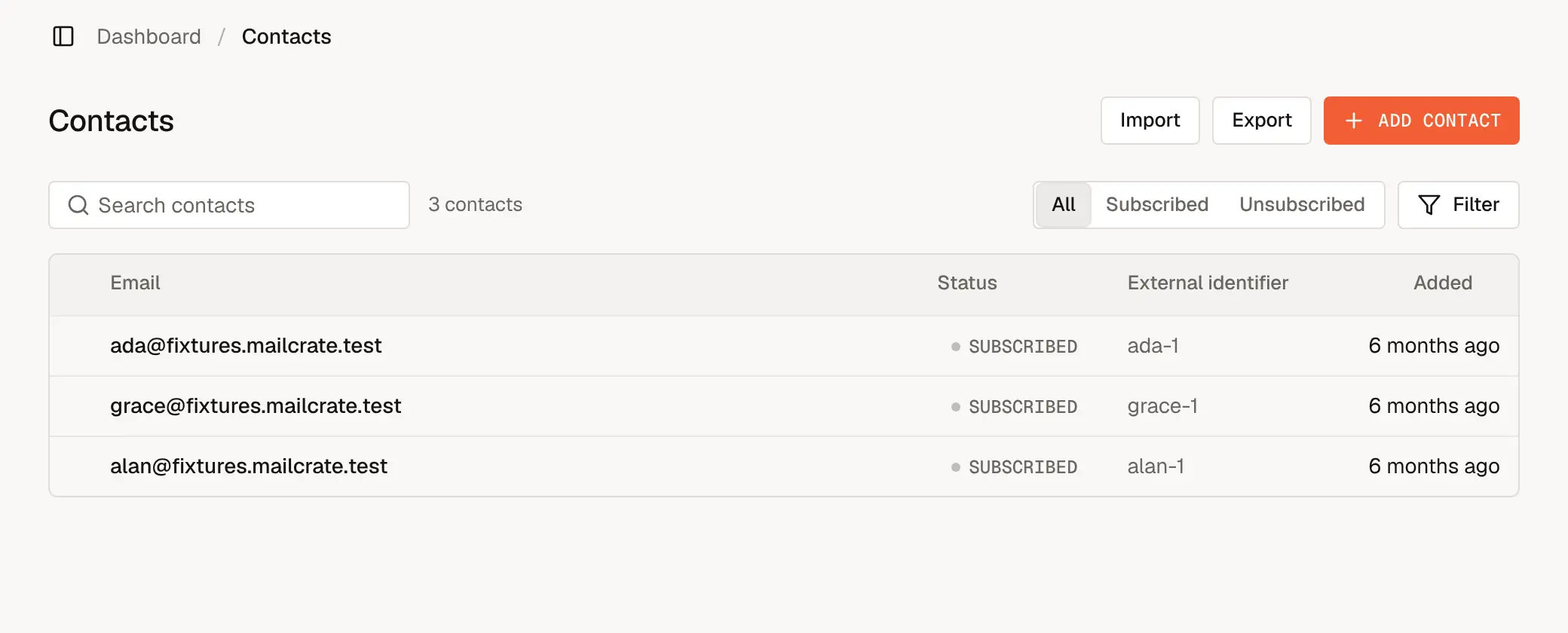
Go to Contacts and choose Add Contact.
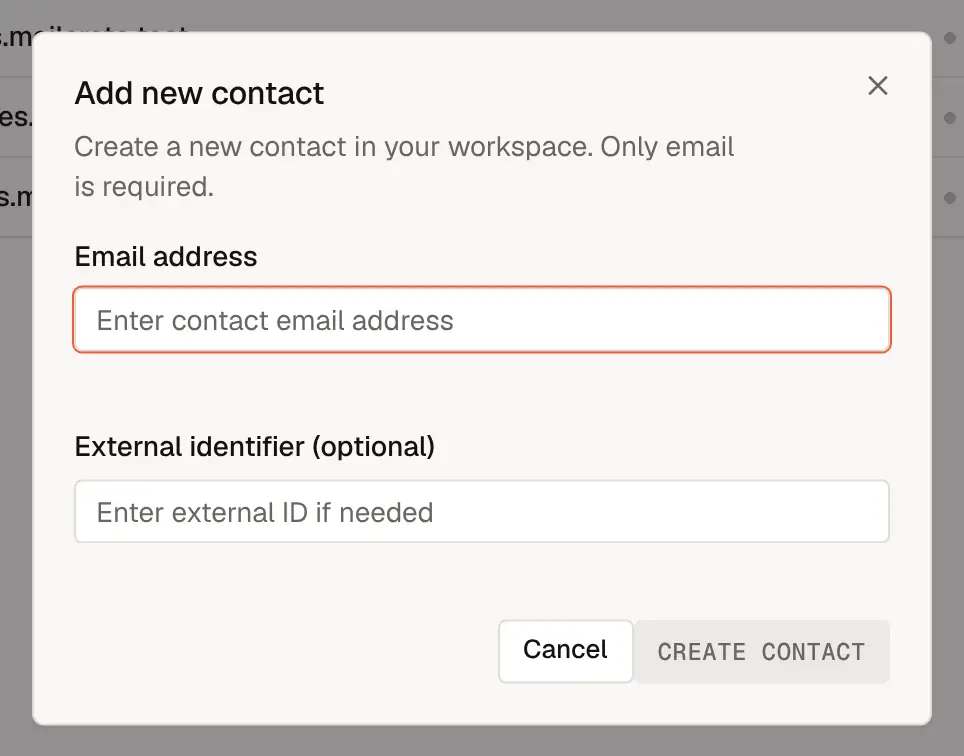
Enter the Email address. Optionally, add an External identifier: the ID the person has in your own system, such as a user ID, so you can match records later.
The first time anyone in the workspace adds or imports contacts, Mailcrate asks you to confirm that these people agreed to receive email from you. Tick the statement (and optionally say whether you will send marketing, transactional email, or both). This is asked once per workspace.
Choose Create Contact. New contacts are Subscribed.
To add many contacts at once, import a CSV. Developers can also create and update contacts through the API.
Find contacts
- Search contacts matches on email address.
- All, Subscribed and Unsubscribed narrow the list by status.
- Filter opens the same rule builder segments use: contact properties, email activity (opened, clicked, bounced and so on), custom events, and segment membership. When the filtered list is one you will need again, choose Save as segment.
View and edit a contact
Click a contact to open it. The page has four tabs:
| Tab | What it shows |
|---|---|
| Overview | Email, external ID, properties, subscription preferences per subscription group, and whether the address is on the suppression list. |
| Activity | A timeline of deliveries, opens, clicks, bounces and custom events. |
| Deliveries | Every email sent to this contact, with its status. |
| Segments | The segments the contact belongs to. |
To change the email address, external ID or property values, choose Edit contact on the Overview tab and then Save changes. Properties are defined per workspace; see Custom Properties.
Unsubscribe, resubscribe or delete
Open the contact's actions menu in the top right corner:
- Unsubscribe stops all marketing email to the contact, as if they had clicked the unsubscribe link themselves.
- Resubscribe starts it again. Only do this when the person has asked to hear from you again.
- Delete removes the contact and their history from the workspace. This can't be undone.
You can act on several contacts at once: tick them in the list, and use Add to segment, Export or Delete in the bar that appears.
Suppressed is not the same as unsubscribed
If an address bounced permanently, marked your email as spam, or was blocked by an admin, it is on the workspace's suppression list and nothing is sent to it, whatever the contact's status. The contact's Overview tab shows why, and an admin can remove it from the list there.