 Mailcrate
Segments
Group contacts into reusable audiences, either by rules that update themselves or by hand.
A segment is a named group of contacts you can send a campaign to or use in a journey. There are two kinds:
- Dynamic segments are defined by rules, such as "opened an email in the last 90 days" or "plan is Pro". Contacts join and leave automatically as their data and activity change.
- Manual segments contain exactly the contacts you add, by hand or from a CSV.
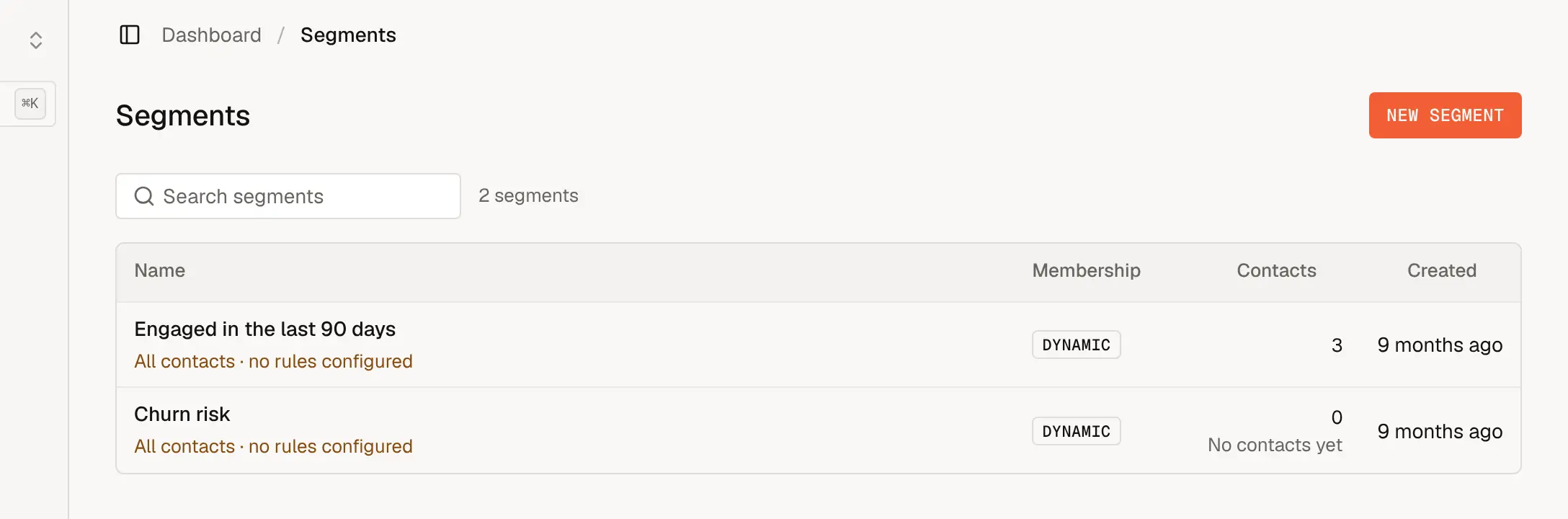
Create a segment
Go to Segments and choose New Segment.
Enter a Segment name and choose how contacts join: Dynamic or Manual. This can't be changed later.
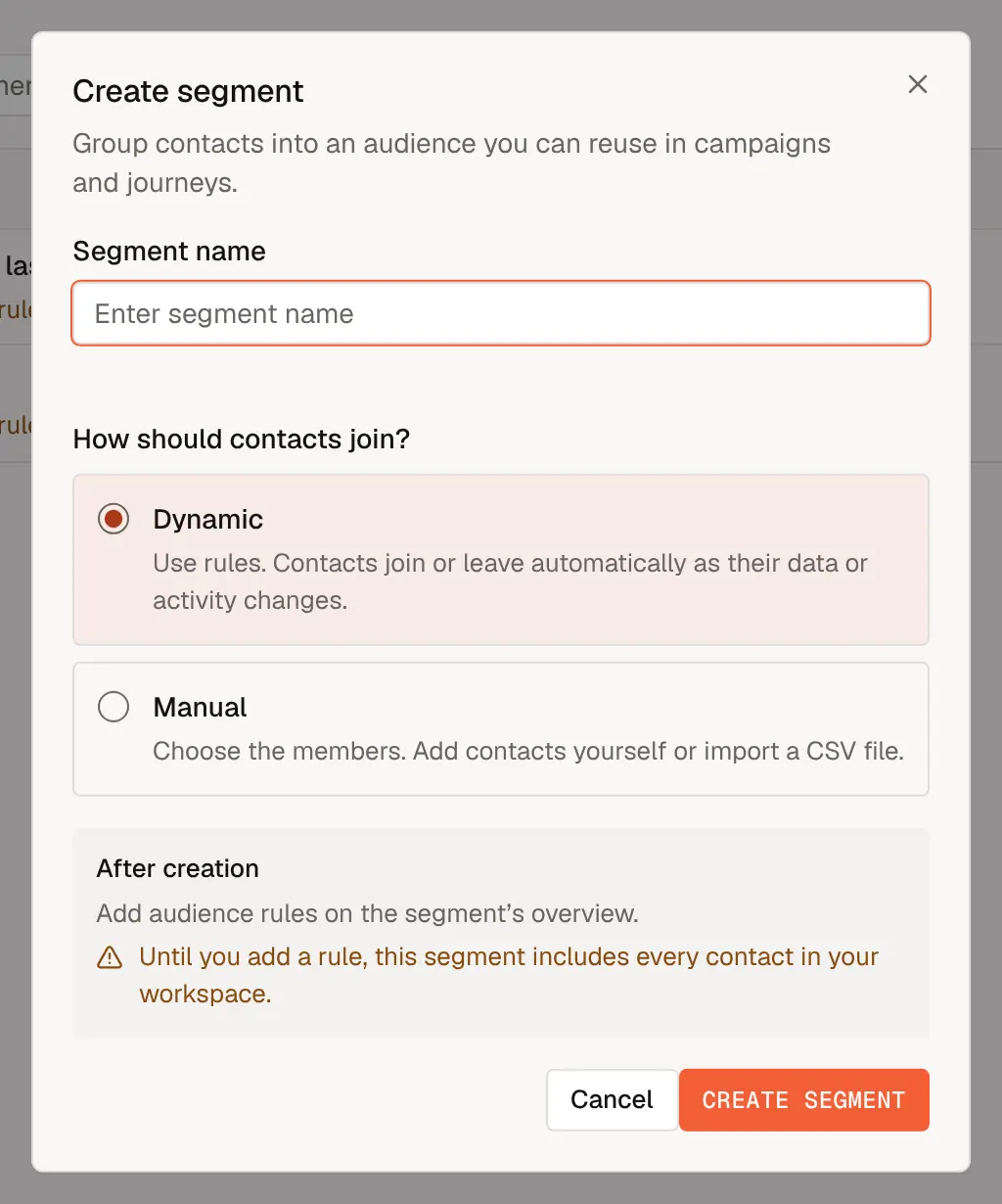
Choose Create segment. The segment's page opens, ready for rules or members.
Dynamic segments
A new dynamic segment has no rules, and a segment without rules includes every contact in your workspace. Add rules before you use it in a campaign.
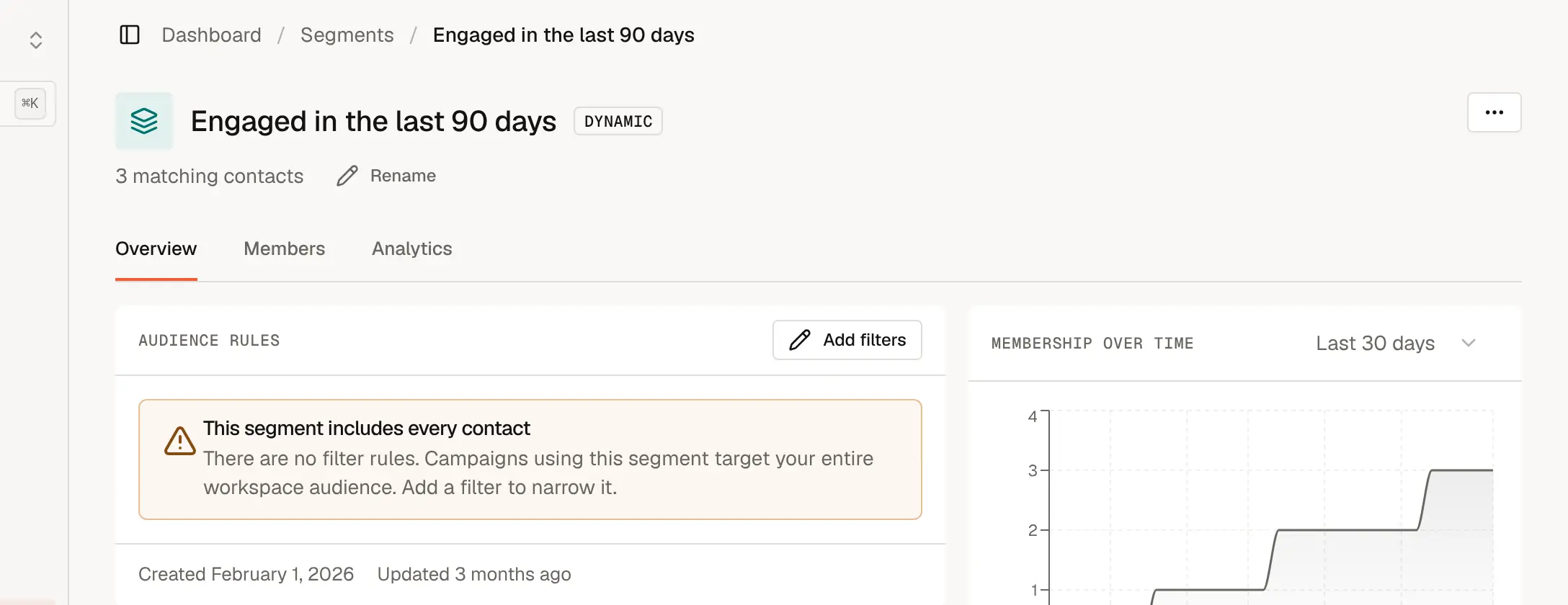
On the segment's Overview tab, choose Add filters.
Choose Add rule and pick what the rule looks at:
| Group | Rules |
|---|---|
| Contact | Email, external ID, subscription status, created and updated dates, and any custom property. Compare with operators such as equals, contains, is empty, greater than or within the last. |
| Activity | Sent email, Received email, Opened email, Clicked email, Bounced, Complained. Set how often (at least, at most, exactly or zero times), add a timeframe such as "in the last 30 days", and narrow it to a specific campaign, email or link with Add condition. |
| Activity | Custom event, for events your application sends to Mailcrate (needs the Custom events feature). |
| Segments | Segment membership: is or isn't a member of another segment. |
Combine rules. A group either matches all of its rules (AND) or any of them (OR). Choose Add group to nest a group inside another, for example "plan is Pro AND (opened in the last 30 days OR clicked in the last 90 days)".
Save the filters. Mailcrate flags any incomplete rule in red and won't save until it is finished.
The segment's page then shows how many contacts match, and the Membership over time chart shows how that number changes. The Members tab lists who is in it right now.
Start from the Contacts page
You can also build a filter on the Contacts page with Filter, check the results in the list, and choose Save as segment when it looks right.
Manual segments
A manual segment starts empty. On its Members tab:
- Add Contacts lets you search by email and add people one at a time.
- Import CSV adds the contacts listed in a file. Map the column that identifies them, then choose Add to segment to keep the current members, or Replace segment members to remove anyone not in the file.
- The remove button on a row takes that contact out of the segment. It doesn't delete the contact.
You can also add contacts from the Contacts list: tick them and choose Add to segment.
Use a segment
- In a campaign, pick the segment on the Audience step. See Creating Campaigns.
- In a journey, use segment membership in a branch, or remove contacts from the journey when they leave a segment. See Journeys.
- To download its members, use Export on the Members tab.
Unsubscribed and suppressed contacts can be members of a segment, but they are always skipped when a campaign sends.
Rename or delete a segment
Choose Rename under the segment's name, or open the … menu and choose Delete segment. Deleting a segment doesn't delete its contacts.