 Mailcrate
Creating Campaigns
Build a broadcast email step by step, choose who receives it, test it, and send it.
A campaign is built in four steps: Audience, Email, Delivery and Review. Each step is saved as a draft as you go, so you can leave and come back. New to Mailcrate? Your First Campaign is a shorter walkthrough.
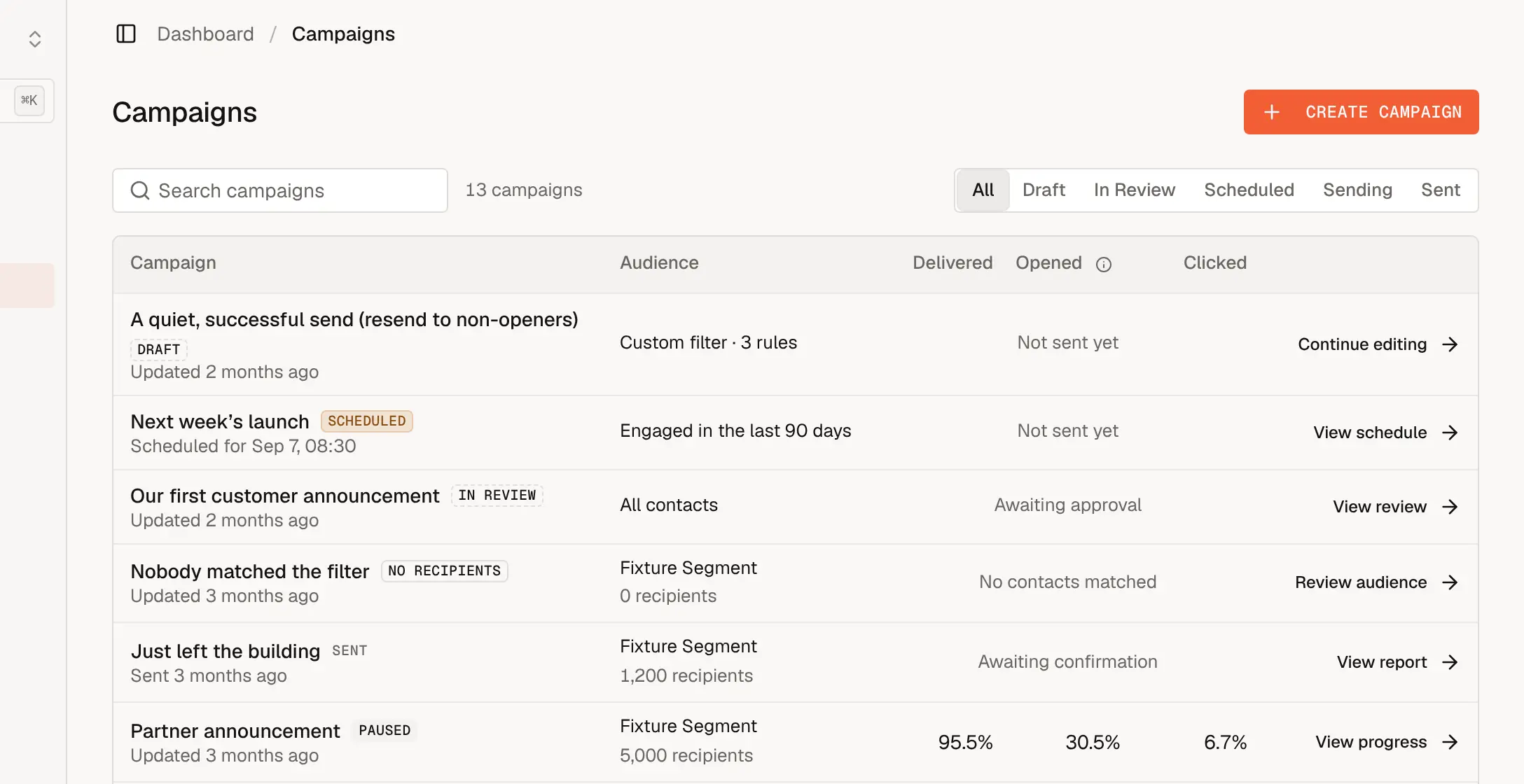
Create a draft
Go to Campaigns, choose Create Campaign, enter a name, and choose Create Draft. The name is internal; recipients never see it.
The rail at the top of the builder shows each step with a short summary, such as the audience name or "Sends now", and a check mark once the step is complete. A step that needs attention says what is missing. Choose any step to jump to it.
Audience
Under Recipients, choose one of:
| Option | Who receives it |
|---|---|
| All contacts | Every contact in the workspace. |
| A segment | The current members of a segment, worked out when the campaign sends. |
| Custom filter | Contacts matching rules you build for this campaign only, with the same rule builder segments use. |
| An external audience | Recipients fetched from your own API at send time. See External Audiences. |
Whichever you choose, unsubscribed and suppressed contacts are skipped automatically. The Audience sample on the right shows a few contacts who match.
Subscription group is optional. Choose one, such as "Product news", and anyone who opted out of that topic is skipped, while everyone else still receives it. See Subscription Groups.
Choose Choose email to attach a published email from Emails, or Create new to make one.
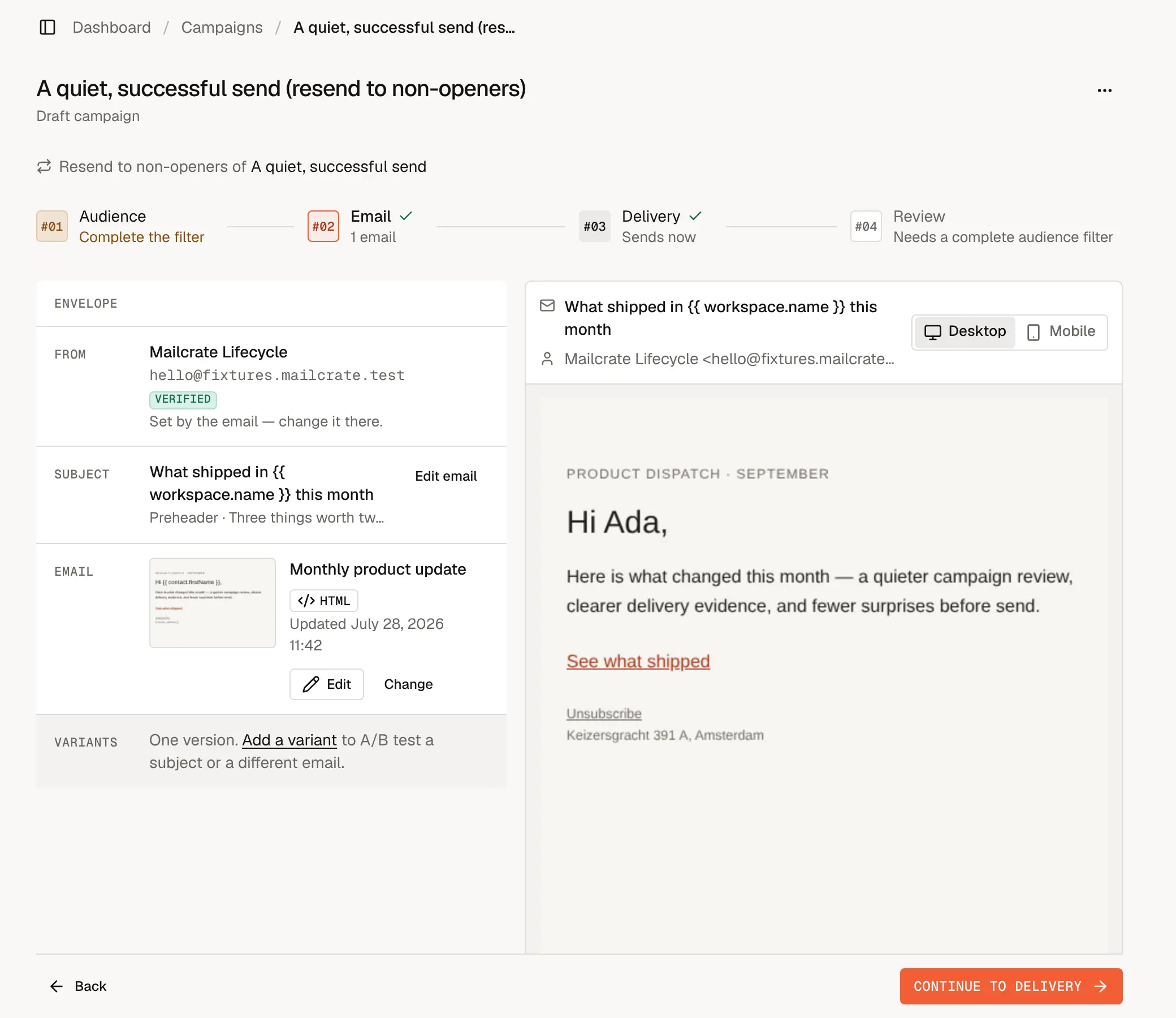
- From comes from the email's sender. If the email doesn't set one, choose a verified sender here.
- Subject comes from the email too. Type a subject here to override it for this campaign only.
- Edit opens the email in the editor; Change swaps it for another one.
The preview renders the email as a recipient sees it, with merge tags filled in with sample values. Switch between Desktop and Mobile to check both.
A/B test (optional)
With the A/B testing feature on, choose Add a variant to test two or more versions of the campaign against each other. Each variant can have its own email, subject and sender. You set the test on the Delivery step: how much of the audience gets the test, how long it runs, and whether the winner, by open rate or click rate, is sent to everyone else automatically or picked by you from the results. Click rate is the more reliable signal, because some inbox providers open tracking images automatically.
Delivery
Choose when and how fast the campaign goes out:
- When: Send now, or Schedule for a date and time.
- Window: send at Any time, or Only during certain days and hours.
- Pace: All at once, Gradually with a daily limit, or At local time in each recipient's timezone.
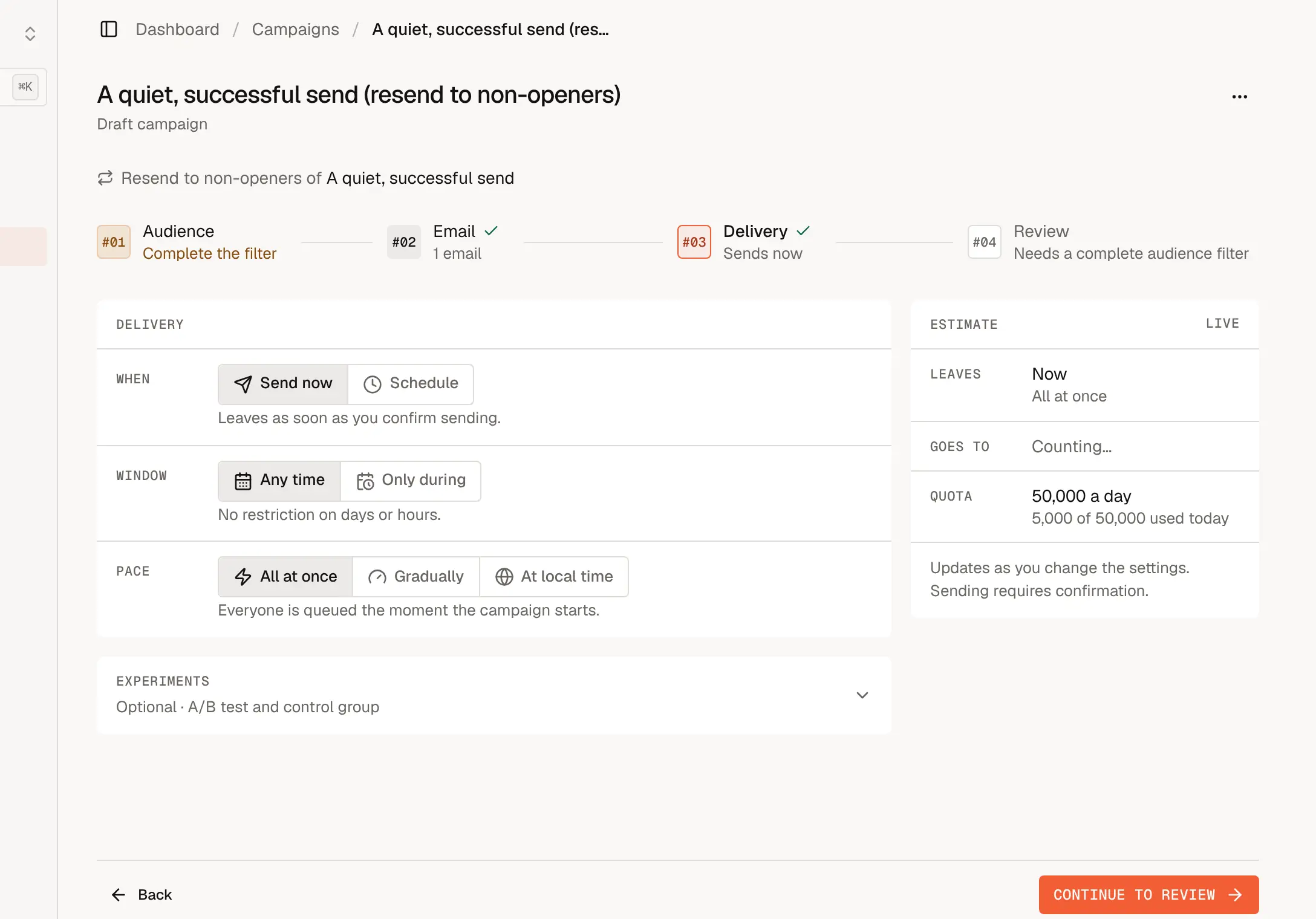
The Estimate panel updates as you change settings: when the campaign leaves, how many recipients it goes to, how long it takes, and how much of today's sending quota it uses. Every option is explained in Scheduling.
Under Experiments you can also set up the A/B test, or hold out a control group: a random share of the audience that doesn't receive the campaign, so you can compare a conversion event between the two groups afterwards.
Review
The Review step lists the whole campaign in a manifest, with Edit next to each line, and runs the pre-send checks.
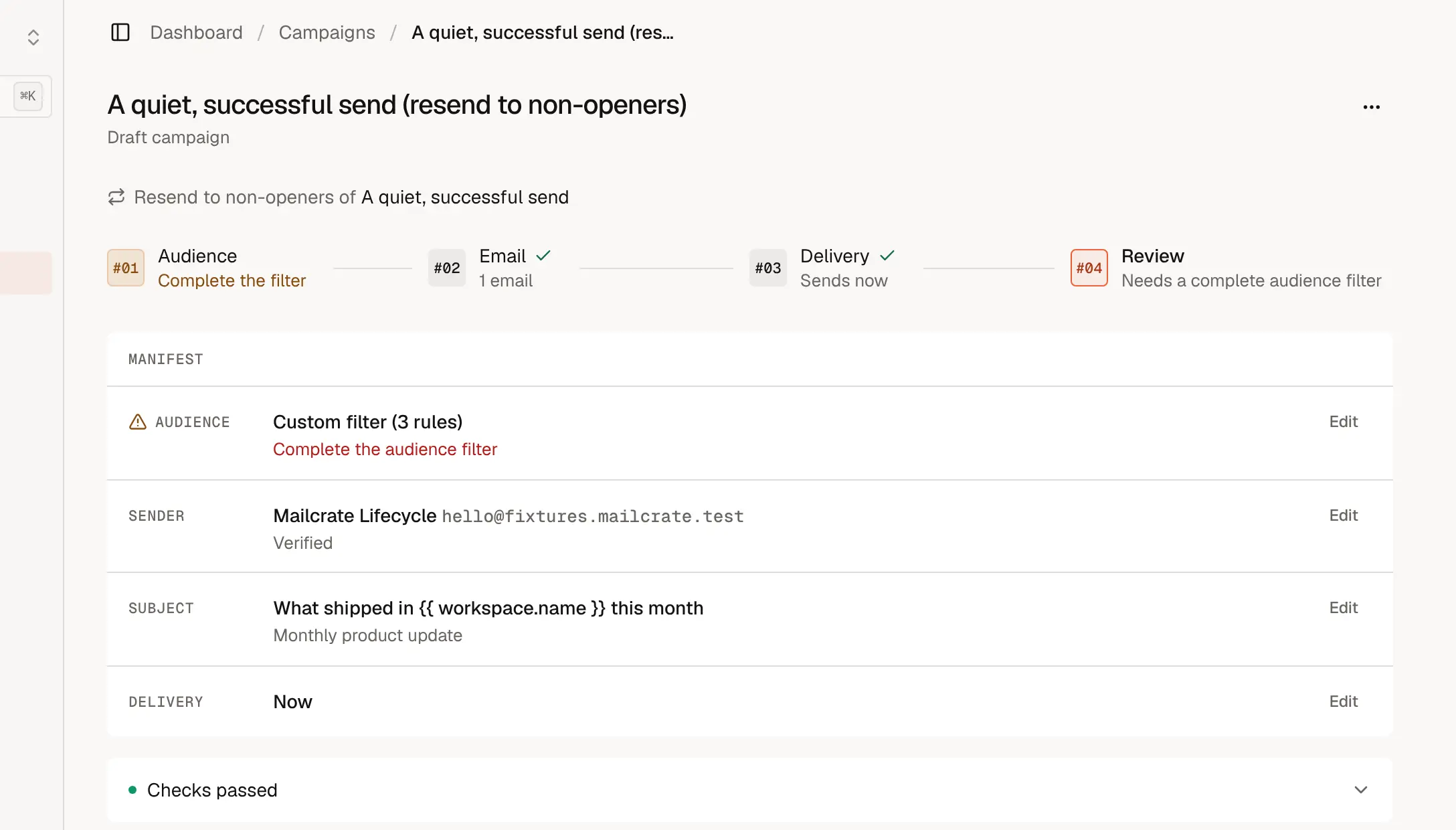
| Check result | Meaning |
|---|---|
| Checks passed | Ready to send. |
| Ready, with warnings | It can send, but something recommended is missing, such as your postal address in the footer. |
| Things to fix first | It can't send yet, for example because the audience filter is incomplete, nobody is eligible, or the sender isn't verified. Choose the issue to jump to the step that fixes it. |
Before sending, choose Send test email. The test goes only to your own address, so you can check the real thing in your inbox.
Send
Choose Send campaign or Schedule campaign. A confirmation shows the sender, audience, email, pace and quota one last time; confirm with Send now, Start sending (for paced sends) or Schedule send.
If this is a new workspace's first campaign to more than 1,000 recipients, it waits for a one-time review first. See Review & Approval.
After you send
- Scheduled campaigns can still be stopped: open the campaign and choose Cancel Schedule to return it to draft.
- Sending campaigns show their progress. Choose Pause sending to stop the rest of the audience from receiving it for now, and Resume sending to continue.
- Sent campaigns show their report. See Delivery Log. Resend to non-openers creates a follow-up draft aimed at the recipients who didn't open it.
- To delete a draft, open its … menu and choose Delete campaign.