 Mailcrate
Subscription Groups
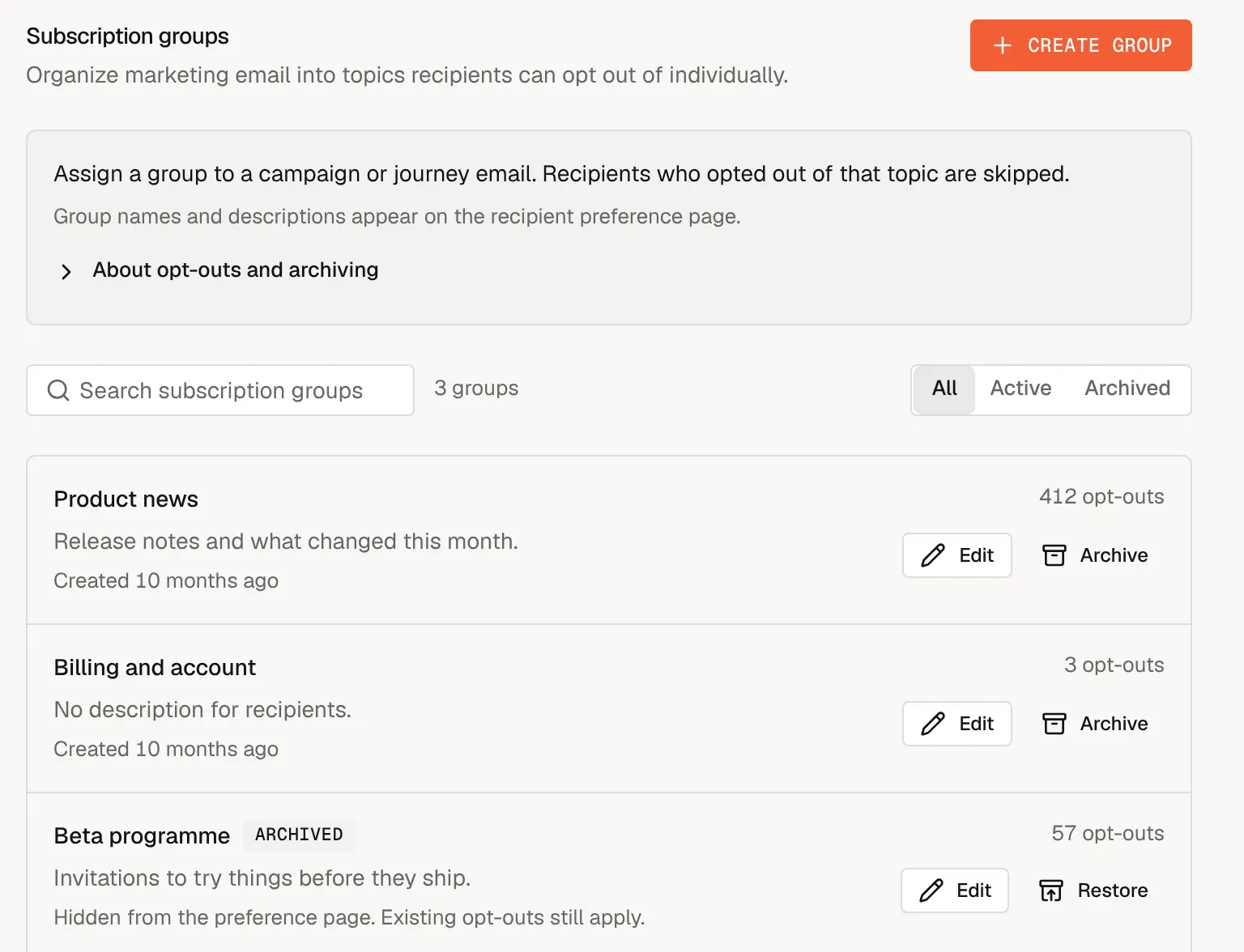
Let contacts opt out of one kind of email, like a newsletter, without unsubscribing from everything.
Without subscription groups, a contact's only choice is to receive all your marketing email or none of it. Subscription groups are topics, such as Product news, Newsletter or Events, that contacts can opt out of individually. Someone tired of your newsletter can drop just that, and still hear about the things they care about.
Subscription groups are an optional feature. Turn them on in Settings → Workspace → Features, then manage them under Settings → Workspace → Subscription groups. Only owners and admins can create and change groups.
How it works
01
Create a group
For example, Product news.
02
Assign it to an email
On a campaign or a journey email.
03
Contacts choose
On the preference page, or with the unsubscribe link.
04
Opt-outs are skipped
Everyone else still receives it.
Create a group
Choose Create group.
Enter a Name and an optional Description. Both appear to recipients on their preference page, so write them for your readers, for example "Release notes and what changed this month". The dialog previews the text as recipients will see it.
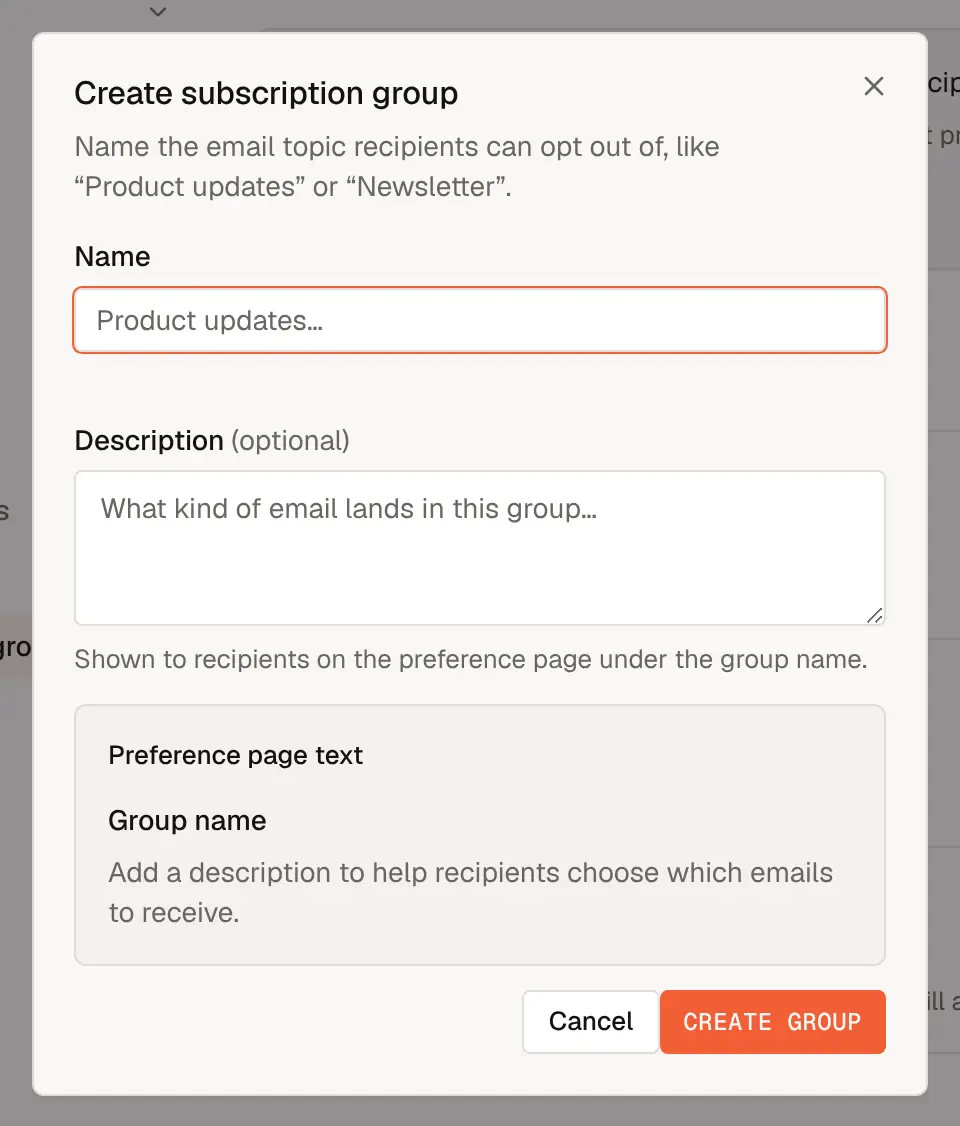
Choose Create group.
Assign a group to an email
- Campaigns: pick the group under Subscription group on the Audience step.
- Journeys: pick the group on the journey's send email step.
When the email sends, contacts who opted out of that group are skipped and recorded as Suppressed in the delivery log. Emails without a group keep the usual behaviour: they reach everyone who hasn't unsubscribed from marketing altogether.
How contacts opt out
- On the preference page, linked from the unsubscribe link in your emails, contacts see every active group and can switch off the ones they don't want.
- The one-click unsubscribe button that Gmail and other providers show next to your sender name opts the contact out of the email's own group only, not out of everything. If that group has since been archived, the button unsubscribes them from all marketing email instead.
- A journey can opt contacts in or out with a Subscription group step, set to Add to group or Remove from group.
You can see and change a single contact's choices on their page, under Subscription preferences. If the contact is unsubscribed from all marketing email, their group choices are kept but only take effect once they resubscribe.
Sends through the API can name a group too. A group opt-out is honoured whenever an email names the group, even on a transactional send, so leave the group off messages people must always receive.
Read the numbers
The count next to each group is the number of opt-outs, not subscribers. Everyone who hasn't opted out is included by default.
Edit, archive and restore
- Edit changes a group's name and description.
- Archive hides a group from selectors and from the preference page. Existing opt-outs still apply to emails that were already assigned to it, but recipients can no longer change them, and one-click unsubscribe from one of those emails unsubscribes from everything.
- Restore brings an archived group back.
Turning the Subscription groups feature off keeps all preferences: existing opt-outs are still honoured, and the preference page stays available to recipients.