 Mailcrate
Sender & Domain Identities
Manage the domains you send from, their authentication, the addresses on them, branded tracking links and inbound mail.
Everything about where your email comes from lives under Settings → Mail Setup → Mailing. Adding and verifying your first domain is a getting-started step, covered in Verify Your Sending Domain. This page covers managing domains once they exist.
The domains list
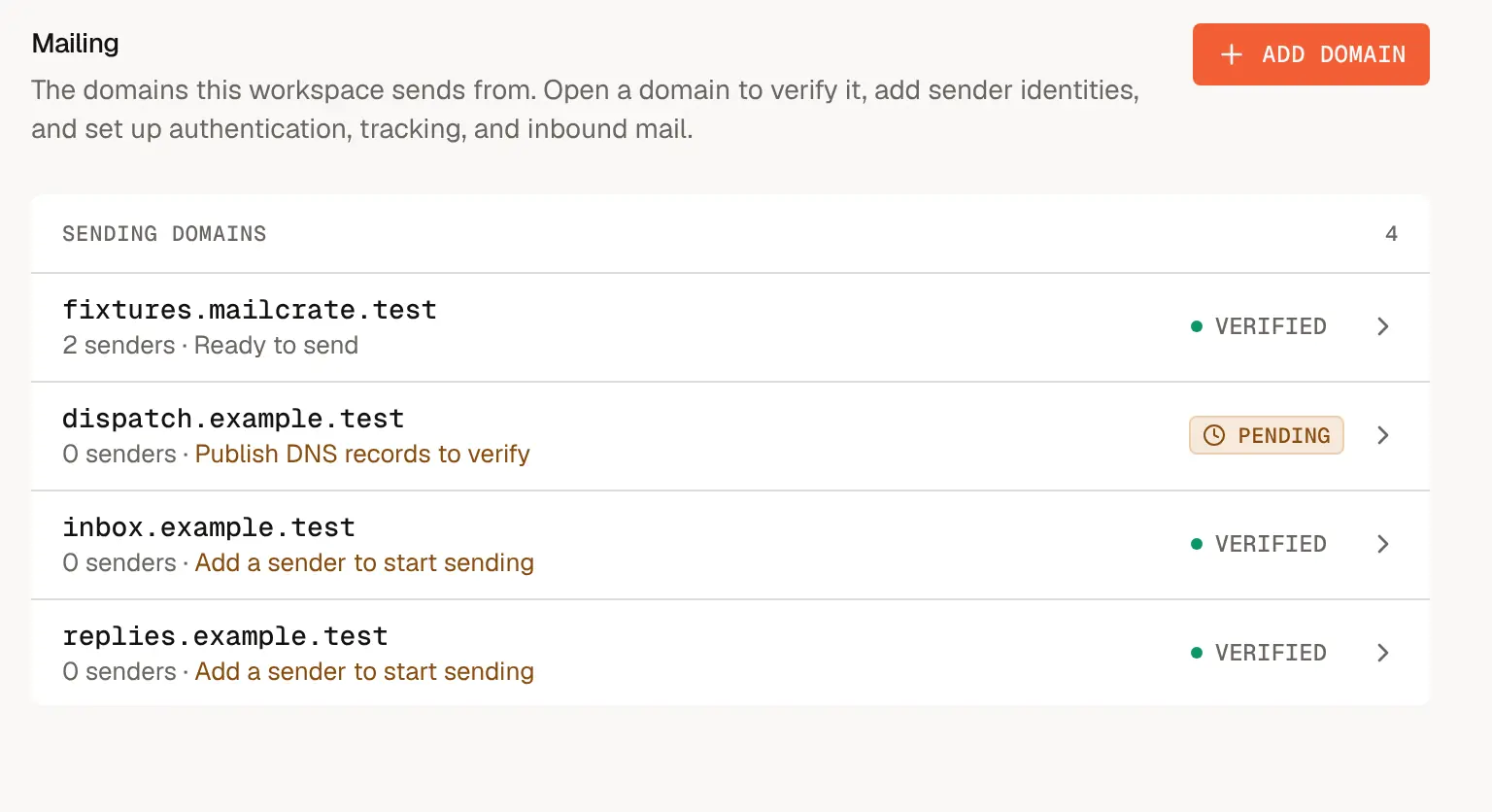
The Mailing page lists every sending domain with its status and what it needs next:
| Summary | Meaning |
|---|---|
| Publish DNS records to verify | The domain is pending. Its ownership records haven't been found yet. |
| Add a sender to start sending | The domain is verified but has no sender identity, so nothing can send from it yet. |
| 1 recommended step (or more) | Ready to send, but DKIM signing, the envelope sender or DMARC is still pending. Open the domain to see which. |
| Tracking domain pending | Ready to send; the optional branded tracking domain is still waiting for its DNS record. |
| Ready to send | Verified, with at least one sender. |
A domain's page
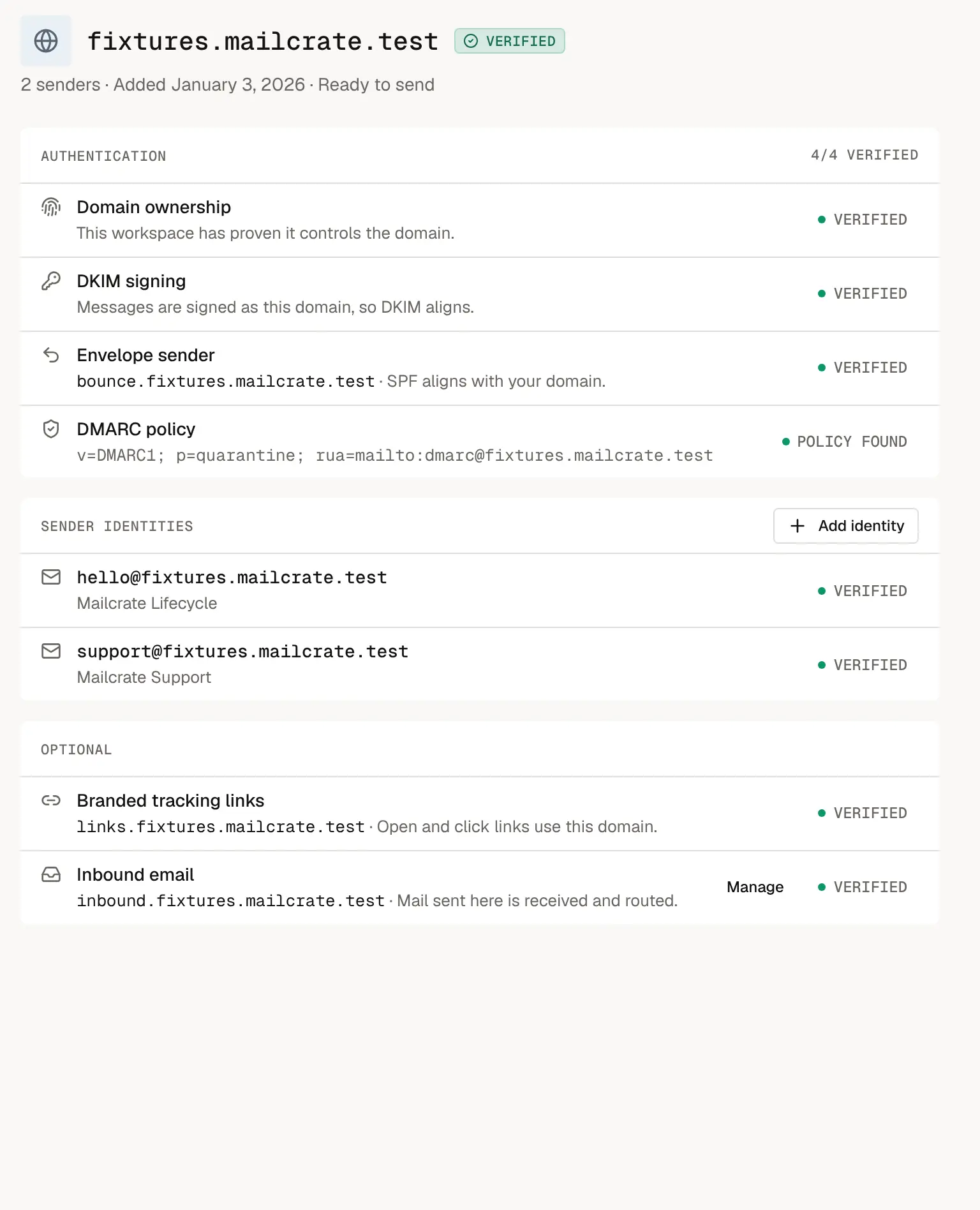
Open a domain to see its setup in three groups.
Authentication
| Item | Verified means | If it is pending |
|---|---|---|
| Domain ownership | This workspace has proven it controls the domain. | Nothing sends from the domain. Publish the records shown. |
| DKIM signing | Messages are signed as your domain, so DKIM aligns. | Mail is signed as amazonses.com instead. It still sends, but Gmail and Yahoo expect DKIM alignment from bulk senders. |
| Envelope sender | Bounces return through send.<your domain>, so SPF aligns. | Bounces return through amazonses.com. It still sends, but SPF won't align. |
| DMARC policy | A DMARC record was found on your domain. | Recommended. Start with v=DMARC1; p=none; to monitor without affecting delivery. |
Choose Show records on any item to see the DNS records it needs, and Check again after publishing them. Mailcrate also re-checks in the background every 15 minutes.
Sender identities
The addresses you send from on this domain, each with its own display name. Choose Add identity to create one, for example support@ next to hello@. Identities can be added once the domain is verified, and are usable as soon as it is.
Optional
- Branded tracking links. By default, tracked links in your email point at a Mailcrate tracking domain. Choose Set up, enter a subdomain such as
links.acme.com, and publish theCNAMErecord shown. Until it resolves, links keep using the default tracking domain, so nothing breaks in the meantime. - Inbound email. Receive mail sent to an address on this domain, and route it inside Mailcrate. See Inbound Mail.
Both become available once the domain is verified.
Choosing which sender a message uses
- An email can set its own sender in the editor. A campaign using that email sends from it.
- A campaign whose email has no sender lets you pick one on its Email step.
- Transactional and API sends name the sender in the request.
Only verified senders on verified domains can send real email.
Delete a domain
A domain that is still pending can be removed: open it and choose Delete domain. A verified domain can't be deleted from the app, because it may still be sending. This tears down its setup on Mailcrate's side. You can add it again later, but you'll have to publish its DNS records again. You can then remove the records from your DNS as well.
Don't remove DNS records from a domain you still send from. Mailcrate doesn't downgrade a verified domain automatically, but missing DKIM and envelope sender records hurt deliverability straight away.