 Mailcrate
Import & Export
Bring contacts in from a CSV file, follow the import, and export contacts back out.
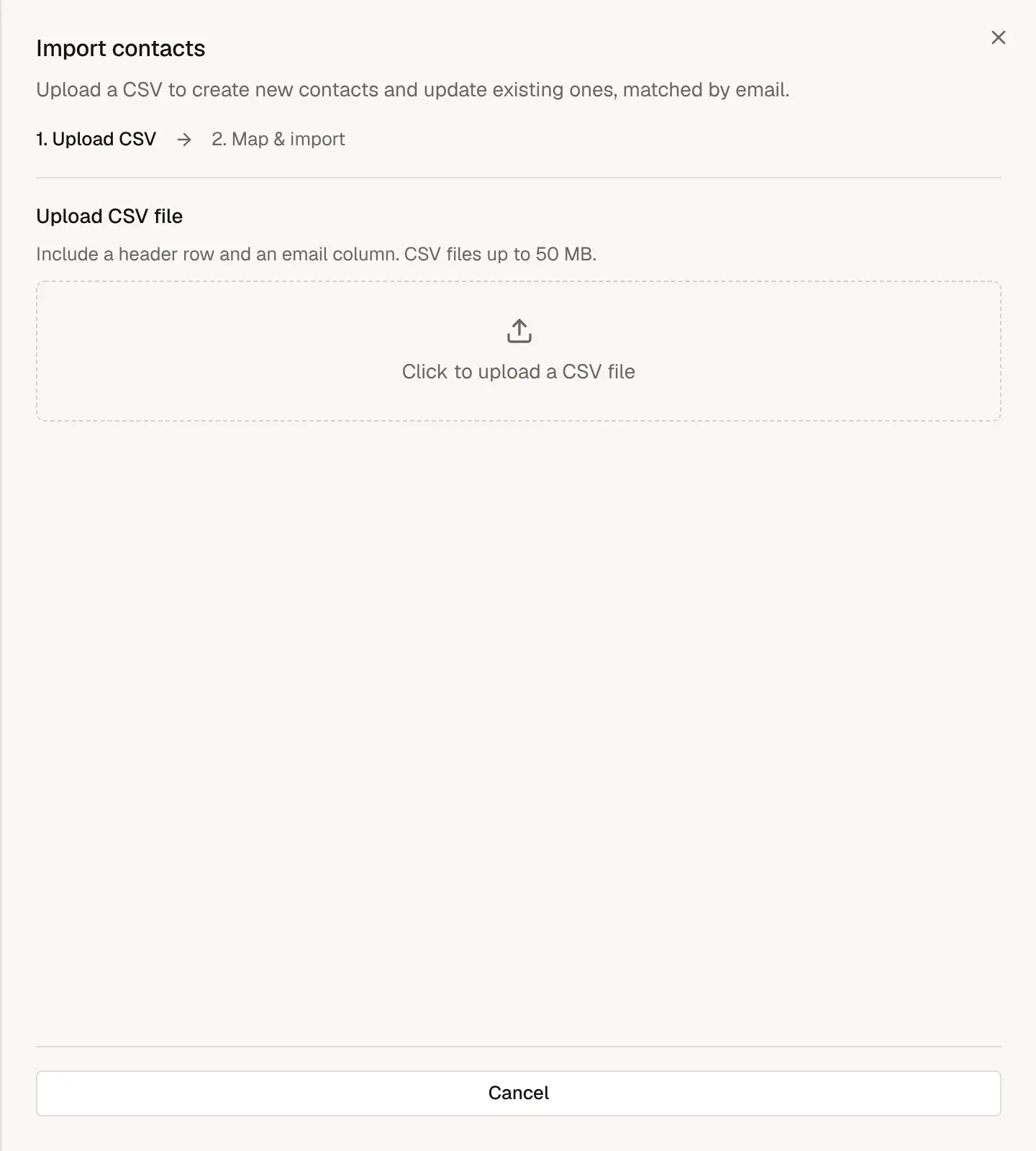
Import contacts from a CSV
An import creates new contacts and updates existing ones, matched by email address. Your file needs a header row and a column with email addresses; everything else is optional. Files can be up to 50 MB.
Map the columns
Mailcrate shows each column with a sample value. For each one, choose where it goes:
- Email, External ID, or Subscription status.
- An existing contact property.
- New property, which creates a property named after the column.
- Skip column, to leave it out. Columns Mailcrate doesn't recognise start out skipped.
The summary underneath tells you how many columns will be mapped, skipped, and created as new properties. You can also give the import a name, which helps you find it later.
Decide whether new contacts trigger automations
Trigger automations for new contacts makes every newly created contact fire the "A contact is created" event, which enrols them in active journeys and notifies your webhooks. Leave it off when you are importing people you already know, so nobody gets your welcome email a second time. Updated contacts never trigger it.
Start the import
Confirm the consent statement if Mailcrate asks for it, then choose Start import. Imports run in the background, so you can close the panel and keep working.
How existing contacts are updated
- Contacts are matched by email address. A match is updated; anything else is created.
- Empty cells never overwrite existing values.
- If you map a Subscription status column, rows reading
unsubscribed,opted_out,false,noor0are imported as unsubscribed and added to the suppression list, so the opt-out sticks. A subscribed value never resubscribes someone who has already opted out. A value Mailcrate can't read fails that row rather than guessing.
Follow an import
Go to Settings → Audience Data → Imports to see every import, its progress, and how many contacts were created, updated and failed.
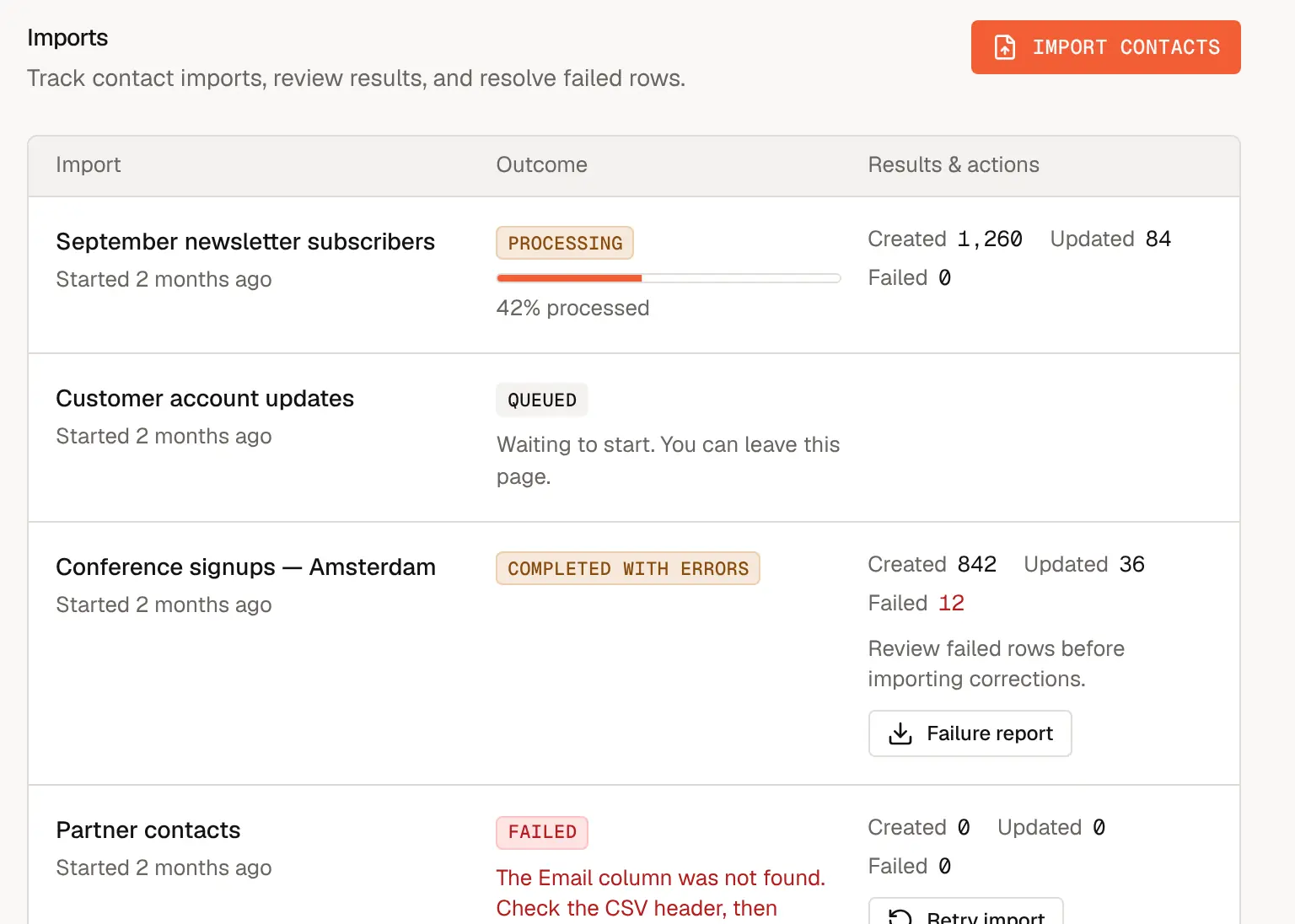
| Outcome | What to do |
|---|---|
| Queued or Processing | Nothing. It runs in the background. |
| Completed | Done. |
| Completed with errors | Choose Failure report to download the rows that failed and why. Fix them and import just those rows again. |
| Failed | The file itself couldn't be read, for example because there was no email column. Fix the file and choose Retry import. |
Importing into a segment
To add a list of people to a specific manual segment, import from the segment's Members tab instead. See Segments.
Export contacts
Go to Contacts and choose Export. To export only some contacts, tick them first and choose Export in the selection bar; to export a segment, use Export on the segment's Members tab.
Optionally rename the export, then choose Start export.
Go to Settings → Audience Data → Exports and download the CSV once it is ready.
Exports contain personal data. Store and share the file accordingly, and delete it when you no longer need it.