 Mailcrate
Account & Authentication
Register, confirm your email, log in, reset your password, and turn on two-factor authentication.
Your Mailcrate account is personal: it is how you log in. The workspaces you send from are separate, and one account can belong to several of them (see Workspace Onboarding).
Create an account
Open the sign-up page
Go to the Mailcrate app and choose Create Account in the top right corner.
Enter your details
Fill in your Name, Email address and a Password of at least 12 characters, accept the Terms of Service and Privacy Policy, and choose Create Account.
You can also choose Continue with Google. Mailcrate then asks you to accept the terms on one extra screen and creates the account with your Google address, which is already verified, so you skip the next step.
Confirm your email address
Mailcrate sends a confirmation link to the address you entered. Open the email and click the link; the page says Email confirmed, and you can log in.
If the email does not arrive within a few minutes, check your spam folder. If the link has expired, the confirmation page lets you enter your address and send a new one.
Joining a team instead?
If a teammate invited you, open the link in their invitation email first. It brings you to the sign-up page and then straight into their workspace. See Team Invitations.
Log in
Enter your email and password on the login page and choose Log In, or use Continue with Google if your account uses the same Google address.
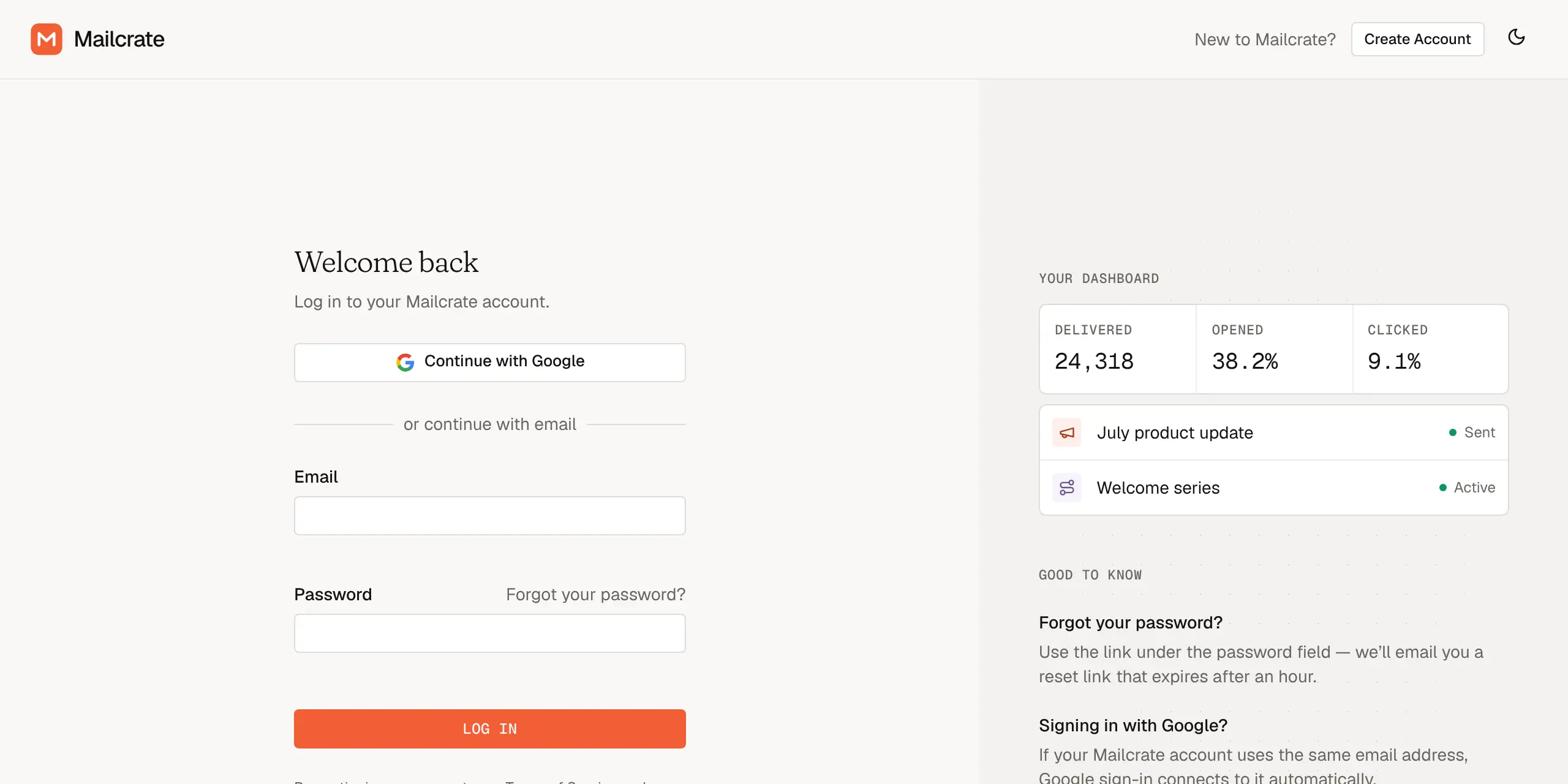
If two-factor authentication is on, Mailcrate then asks for the six-digit code from your authenticator app. Enter it within a few minutes of logging in; if you wait longer, start again from the login page.
Reset a forgotten password
On the login page, choose Forgot your password? next to the password field.
Enter your email address. Mailcrate sends a reset link that expires after an hour.
Open the link, choose a new password, and confirm it. For safety, every device signed in to your account is signed out, so log in again with the new password.
To change your password while logged in, go to Settings → Account → Security.
Turn on two-factor authentication
Two-factor authentication adds a second check when you log in: a code from an authenticator app such as 1Password, Google Authenticator or Authy.
Go to Settings → Account → Security and choose Set up two-factor on the Two-factor authentication card.
Enter your current password to continue.
Scan the QR code with your authenticator app. If you can't scan it, open Can’t scan? Use a setup key and type the key into the app instead.
Enter the six-digit Verification code your app shows.
Mailcrate shows a set of recovery codes. Store them somewhere safe, such as a password manager, then choose I’ve saved my codes.
Each recovery code works once, in place of an authenticator code, if you lose your phone. On the login challenge, choose Use a recovery code. The Security page shows how many codes you have left and lets you Replace recovery codes or turn two-factor authentication off.
If you lose both your authenticator and your recovery codes, you can't log in on your own. Contact Mailcrate support to regain access.
Next step
Once you are logged in, Mailcrate asks you to create or join a workspace: continue with Workspace Onboarding.