 Mailcrate
Team Invitations
Invite teammates to your workspace, choose their role, and manage who has access.
Each person on your team has their own Mailcrate account and is added to a workspace with a role. Invitations go out by email, and the link is valid for seven days.
Roles
| Role | What they can do |
|---|---|
| Member | View and manage contacts, emails and campaigns. |
| Admin | Everything a member can, plus manage workspace settings, members, invitations, API keys and features. |
| Owner | Everything an admin can, plus appoint other owners and manage ownership of the workspace. |
You invite people as a member or an admin. Once they have joined, an owner can make them an owner too.
Invite a teammate
Go to Settings → Workspace → Users and choose Invite member.
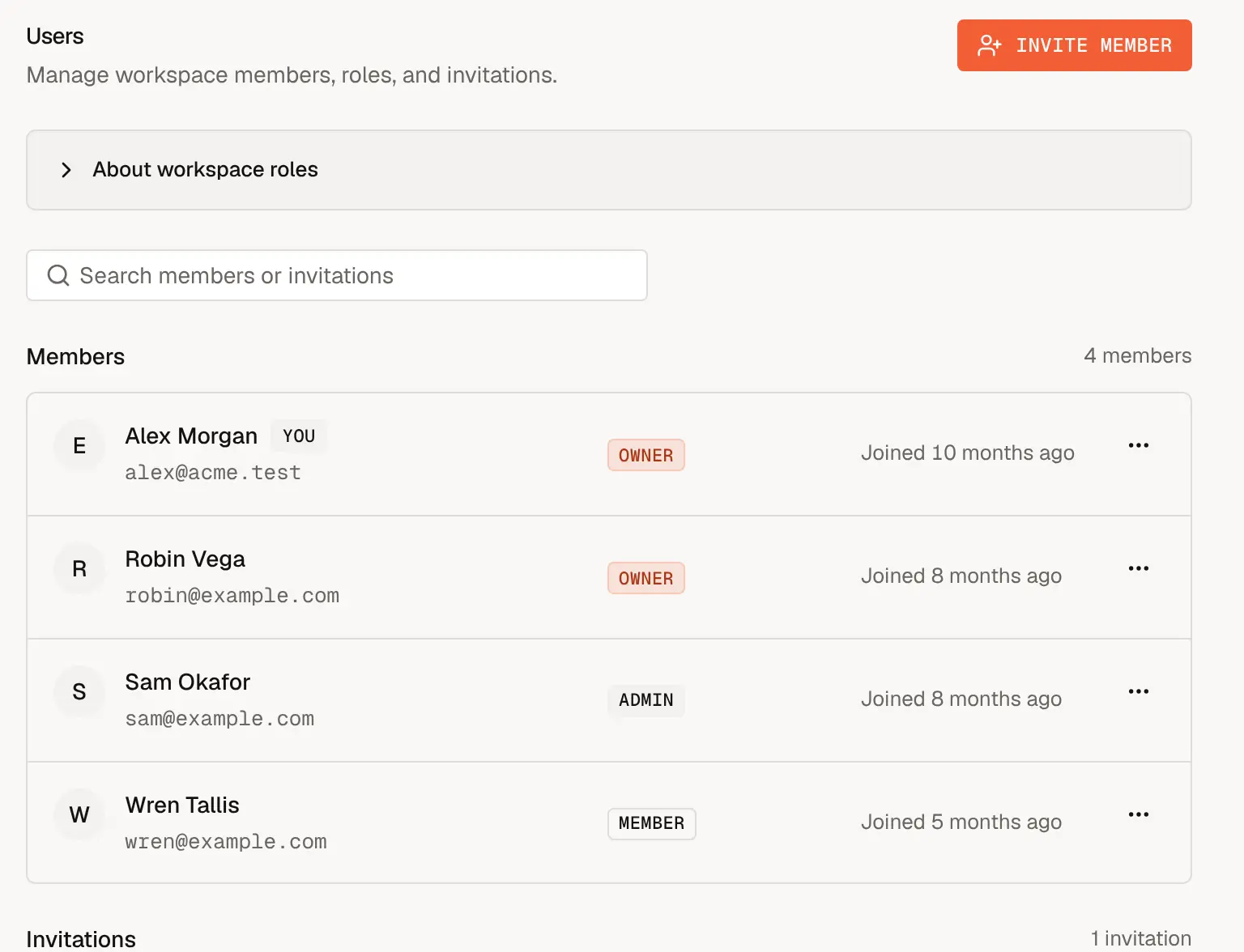
Enter your teammate's Email address and choose a Workspace role.
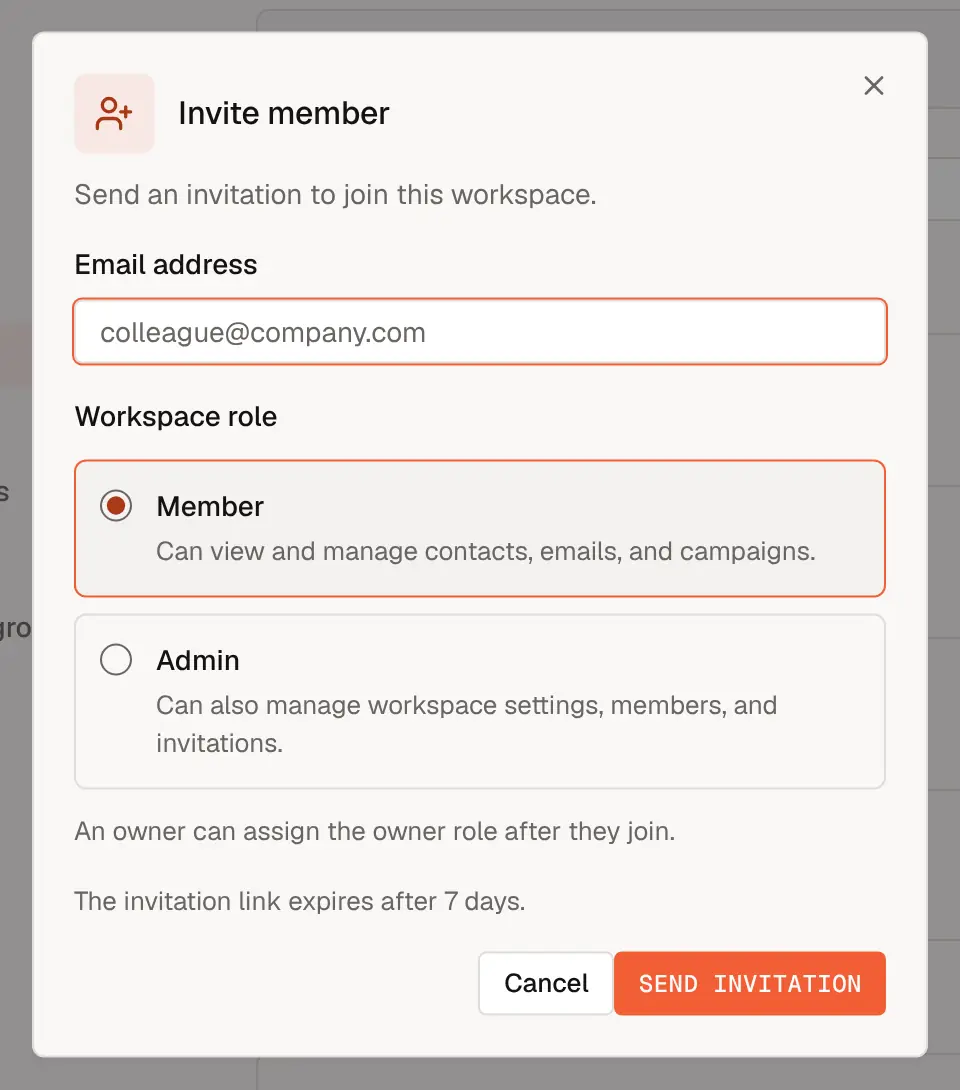
Choose Send invitation. The invitation appears under Invitations on the Users page until it is accepted, and your teammate gets an email with a link to join.
Only owners and admins can invite people. Members see the list but not the invite button.
Accept an invitation
When you receive an invitation:
- Open the link in the email.
- If you are logged in, Mailcrate shows the workspace and your role. Choose Accept Invitation, or Decline if it isn't for you.
- If you don't have an account yet, choose Create Account. After you confirm your email and log in, you land in the invitation again and can accept it. If you already have an account, choose Log In to Accept.
Pending invitations are also listed on the welcome screen you see when you log in without a workspace, with a Join button next to each.
Manage members
Open the … menu next to a member to:
- Change role between member, admin and owner (owners only can appoint owners).
- Remove member, which takes away their access to this workspace immediately. Their Mailcrate account stays; an owner or admin can invite them again later.
To leave a workspace yourself, open the menu on your own row and choose Leave workspace. A workspace always needs an owner, so if you are the only one, make someone else an owner first.
Manage invitations
Choose Revoke invitation next to a pending invitation to cancel it; its link stops working. Invitations expire after seven days and are then marked Expired. To invite the same person again, revoke the expired invitation and send a new one.