 Mailcrate
API Keys
Create a key for a developer or an integration, with only the permissions it needs, and rotate or revoke it later.
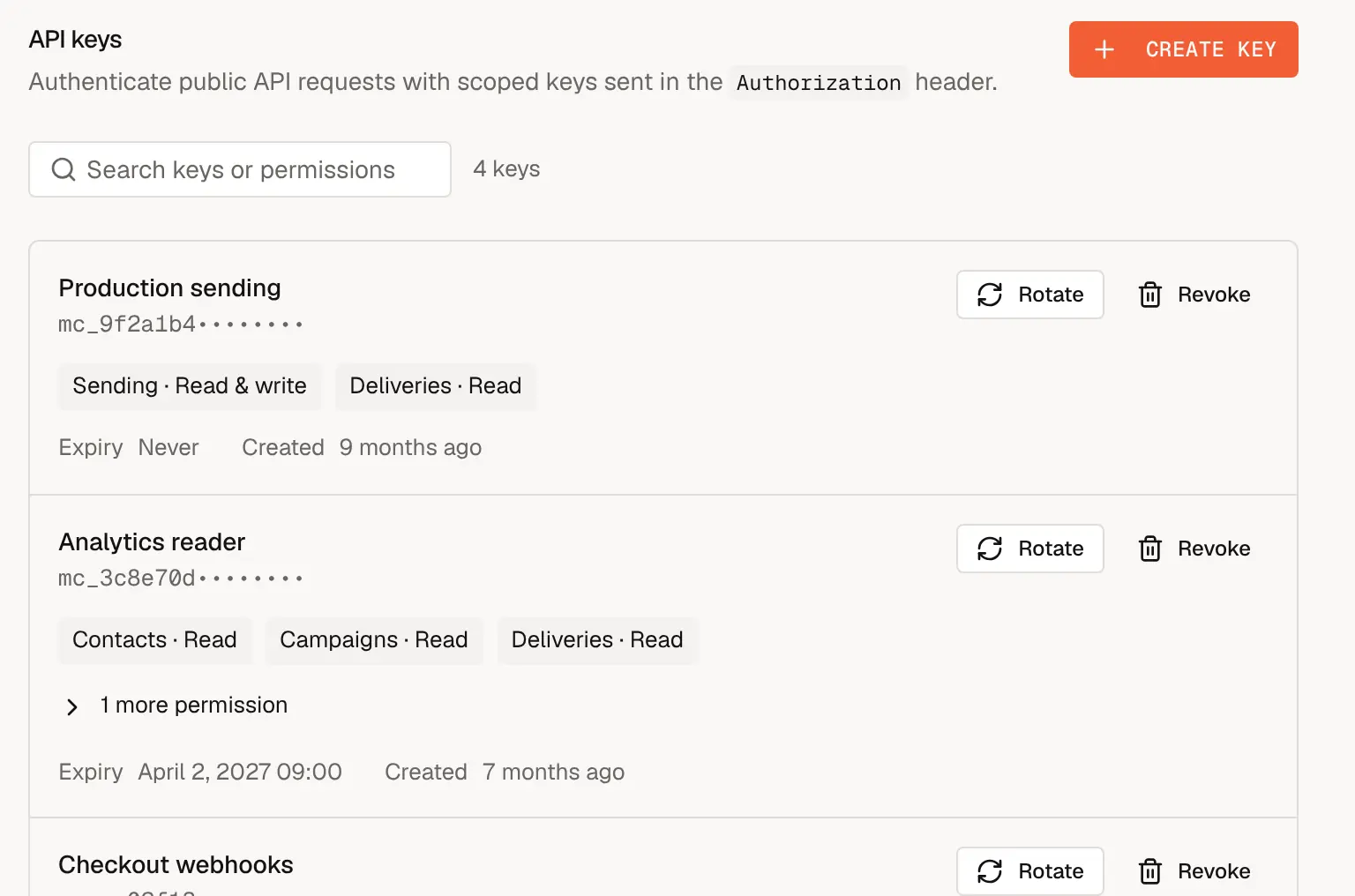
An API key lets software act on your workspace: your application sending transactional email, a CRM syncing contacts, or a script pushing email templates. Each key belongs to one workspace and carries a set of permissions, so a key used only for sending can't read your contact list.
Anyone in the workspace can see the list of keys. Creating, rotating and revoking keys requires the Owner or Admin role.
Create a key
Go to Settings → Developers → API Keys and choose Create key.
Give the key a Name that tells your team where it is used, such as Production sending or Website signup form.
Choose when it Expires: Never, 30 days, 90 days or 1 year. After that date requests with the key are refused, so pick an expiry you will remember to rotate before. Mailcrate shows a banner across the app when a key is about to expire.
Choose its Permissions. Full access reaches every resource, including ones added in the future. For anything other than a fully trusted first-party integration, turn it off and tick only what the integration needs. Read lets it retrieve data; Write lets it make changes and includes read.
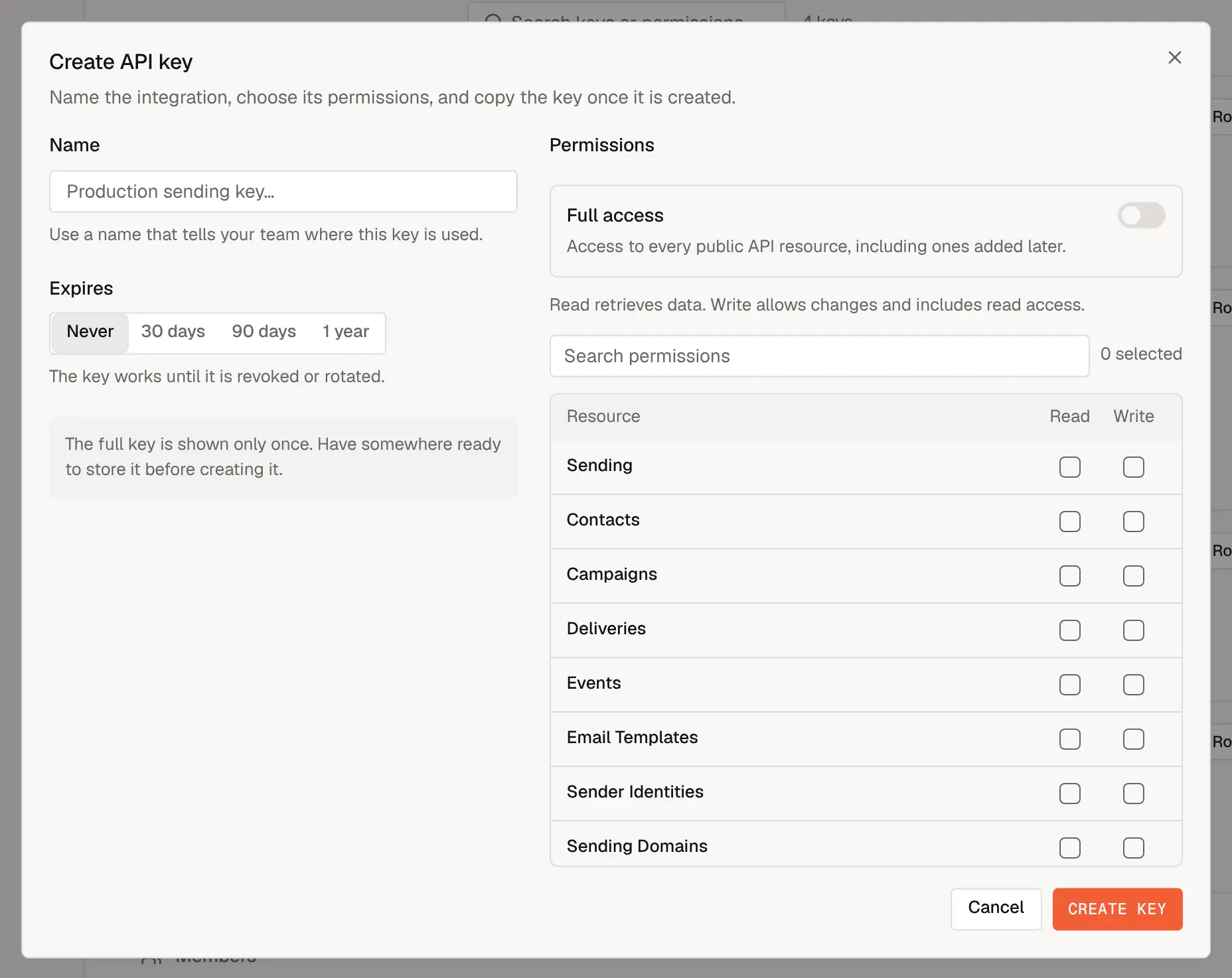
For example, a key that only sends transactional email needs Sending: Write and nothing else.
Choose Create key. Mailcrate shows the full key once, along with an example request. Copy the key into your password manager or your application's secret store before closing the dialog.
Treat a key like a password
Anyone with the key can act on your workspace within its permissions. Keep it in server-side code or a secret store, never in a website's front-end code or a public repository. If a key leaks, revoke it straight away.
Rotate a key
Rotating replaces a key with a new one that has the same name and permissions, and the same lifetime counted from today. Choose Rotate next to the key, copy the replacement, and update every integration that uses it. The old key stops working immediately, so have the new one ready to deploy.
Revoke a key
Choose Revoke next to the key and confirm. Every integration using it stops working at once, and this can't be undone. Expired keys stay in the list, marked Expired, until you revoke them.
Hand it to your developers
Your developers send the key in the Authorization header of every request:
curl https://api.mailcrate.io/public/workspace \
  -H "Authorization: Api-Key <api_key>"
From here, the developer documentation takes over: